
As a Shopify expert, I often speak with high-growth merchants who find themselves tethered to their laptops at midnight, waiting for the clock to strike twelve so they can manually hit the publish button on a new store theme. Whether it is a Black Friday launch, a seasonal collection drop, or a flash sale, the traditional manual approach to managing custom Shopify themes is not just exhausting. It is a significant risk to your brand's operational efficiency and accuracy.
In the fast-paced world of ecommerce, timing is everything. A delay of even a few minutes in updating your storefront can lead to lost revenue and customer frustration. For merchants invested in Shopify Plus development, the expectation is a seamless, high-end experience that works around the clock. That is where automation becomes a vital competitive advantage.
By automating your theme visibility, you transition from a reactive "firefighting" mode to a proactive "set it and forget it" strategy. In this guide, I will show you how to leverage the Maestro Theme Scheduler to automate your store's appearance in five minutes or less.
The High Cost of Manual Theme Management
Before we dive into the "how," we must understand the "why." Many store owners underestimate the hidden costs associated with manual site updates. When you rely on a human being to be online at a specific second to change a theme, you invite several challenges:
- Human Error: It is easy to click the wrong theme or forget to check a specific setting when you are rushing to meet a deadline in the middle of the night.
- Operational Bottlenecks: Your marketing and development teams should be focused on strategy and growth, not administrative tasks that a machine can handle better.
- Inconsistent Customer Experience: If your social media ads go live at 8:00 AM but your theme does not update until 8:15 AM, you create a disjointed experience that hurts conversion rates.
- Maintenance Fatigue: Constant manual updates contribute to burnout for your ecommerce maintenance services team, reducing their ability to tackle more complex technical tasks.
By adopting a robust scheduling solution, you eliminate these friction points and ensure your store always looks exactly how you intended, right when your customers arrive.
Why Automation is Essential for Shopify Plus Merchants
Shopify Plus development often involves highly complex, custom Shopify themes that require precise coordination. Large-scale merchants frequently run multiple concurrent campaigns, each requiring its own unique layout and messaging.
Automation allows you to manage this complexity with ease. Instead of managing a single live site, you are managing a dynamic ecosystem that evolves based on time, date, and customer needs. This level of sophistication is what separates top-tier brands from the rest. Using tools like the Maestro Theme Scheduler ensures that your backend operations are as premium as your front-end design.
How to Automate Your Theme Visibility in 5 Minutes
The process of automating your theme visibility is straightforward when you have the right tools. Follow these steps to set up your first automated theme publish event.
Step 1: Install and Access the Maestro App
The first step is to integrate a dedicated scheduling tool into your Shopify admin. While Shopify provides many native features, advanced theme scheduling is best handled by a specialized app like Maestro.
- Navigate to the Shopify App Store and search for Maestro Theme Scheduler.
- Install the app and grant the necessary permissions.
- Open the app from your Shopify dashboard to access the central scheduling control panel.
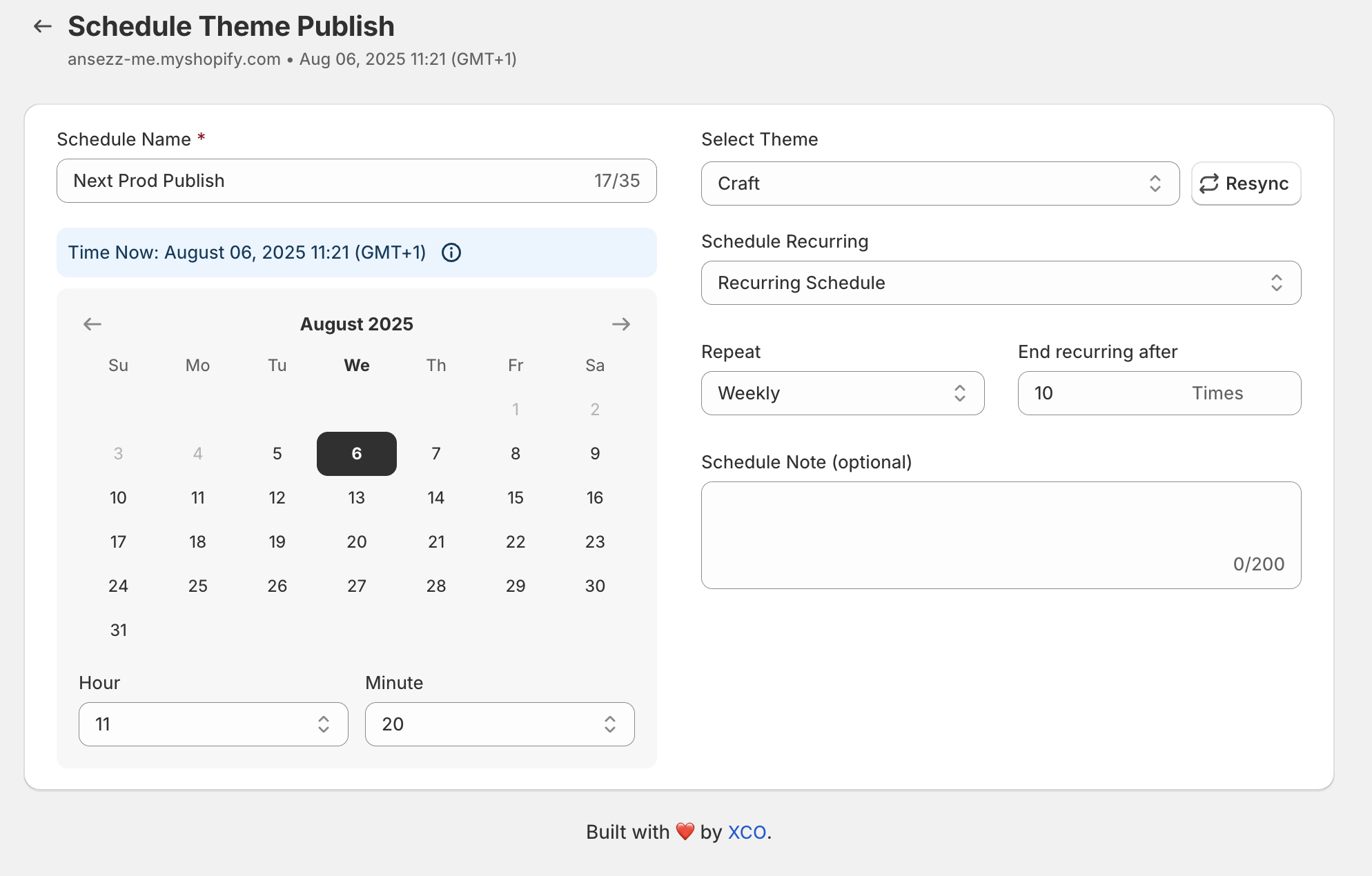
Step 2: Define Your Schedule
Once you are inside the interface, you will see an option to create a new scheduled action. This is where you define the "when" and the "what."
- Name your schedule: Use a clear, descriptive name like "Spring Collection Launch" or "Black Friday 2026."
- Select the theme: Choose from your list of custom Shopify themes. Ensure the theme you select is fully tested and ready for production.
- Set the date and time: Choose the exact moment you want the theme to go live. You can even set a specific timezone to align with your primary customer base.
Step 3: Configure Recurring Automations (Optional)
One of the most powerful features of the Maestro app is the ability to set recurring schedules. If you have a theme that you want to show every weekend or every Monday morning, you can automate this cycle once and never think about it again.
- Select the "Recurring" option.
- Define the frequency (e.g., weekly, monthly).
- Specify how many cycles the automation should run for.

Step 4: Add Internal Notes and Sync
Communication is key for teams. Maestro allows you to add custom notes to each schedule. This is incredibly helpful for ecommerce maintenance services teams who need to know why a specific change was scheduled and by whom.
- Type a brief explanation in the custom note field.
- Click the "Save" or "Schedule" button.
- The app will now sync with your Shopify store, and your theme is ready to go live automatically.
Expanding Automation Beyond the Main Theme
Automating the entire theme is only one part of the equation. Sometimes, you do not need to change the whole theme; you just need to update specific parts of a page. This is where section and block visibility automation comes into play.
As your store grows, you might want to:
- Show a promotional banner only during a 4-hour flash sale.
- Hide a "Back to School" section automatically on September 1st.
- Swap out a hero image at 6:00 PM to reflect a "night mode" aesthetic.
Using a tool like the Maestro Products Scheduler alongside theme scheduling gives you total control over every element of your storefront.

Real-World Use Cases for Theme Automation
To truly understand the value of this technology, let’s look at how successful brands are using it today.
1. The Global Sale Launch
A brand operating in multiple countries can schedule theme updates to occur at midnight in each specific region. This ensures that customers in London see the sale banners at the same local time as customers in New York, without the marketing team needing to stay awake for 24 hours straight.
2. High-Pressure Flash Sales
During a flash sale, traffic spikes can be immense. Manually publishing a theme during a traffic surge is risky. By scheduling the update, the system handles the transition smoothly, allowing your team to focus on monitoring site performance and customer support.
3. Seasonal Transitions
Transitioning your store from a winter aesthetic to a spring look often involves dozens of small changes. By preparing a custom Shopify theme in advance and scheduling its release, you can ensure a perfect transition that happens while your team is focused on other high-value tasks. You might also take this time to enhance your website usability by adding a favicon or updating your custom fonts to match the new season.
Enhancing Store UX Through Strategic Scheduling
Automation is not just about saving time; it is about improving the User Experience (UX). A store that is always up to date feels more trustworthy and professional. When a customer sees a "Limited Time Offer" that actually disappears when the timer hits zero, it reinforces brand authenticity.
If you are looking to further improve your store performance, consider a comprehensive optimization audit report. Combining technical audits with automation tools ensures that your store is not just "scheduled" but also "optimized" for the highest possible conversion rate.

Best Practices for Theme Automation
To get the most out of your automation efforts, keep these best practices in mind:
- Always Test in a Sandbox: Never schedule a theme that has not been thoroughly previewed. Check for mobile responsiveness and app compatibility.
- Monitor the First Few Runs: While automation is reliable, it is always a good idea to check your store shortly after a scheduled update to ensure everything looks perfect.
- Coordinate with Marketing: Ensure your automated theme updates align perfectly with your email marketing and social media campaigns.
- Keep Your Theme Library Clean: Regularly delete old, unused themes to keep your admin dashboard organized and easy to navigate.
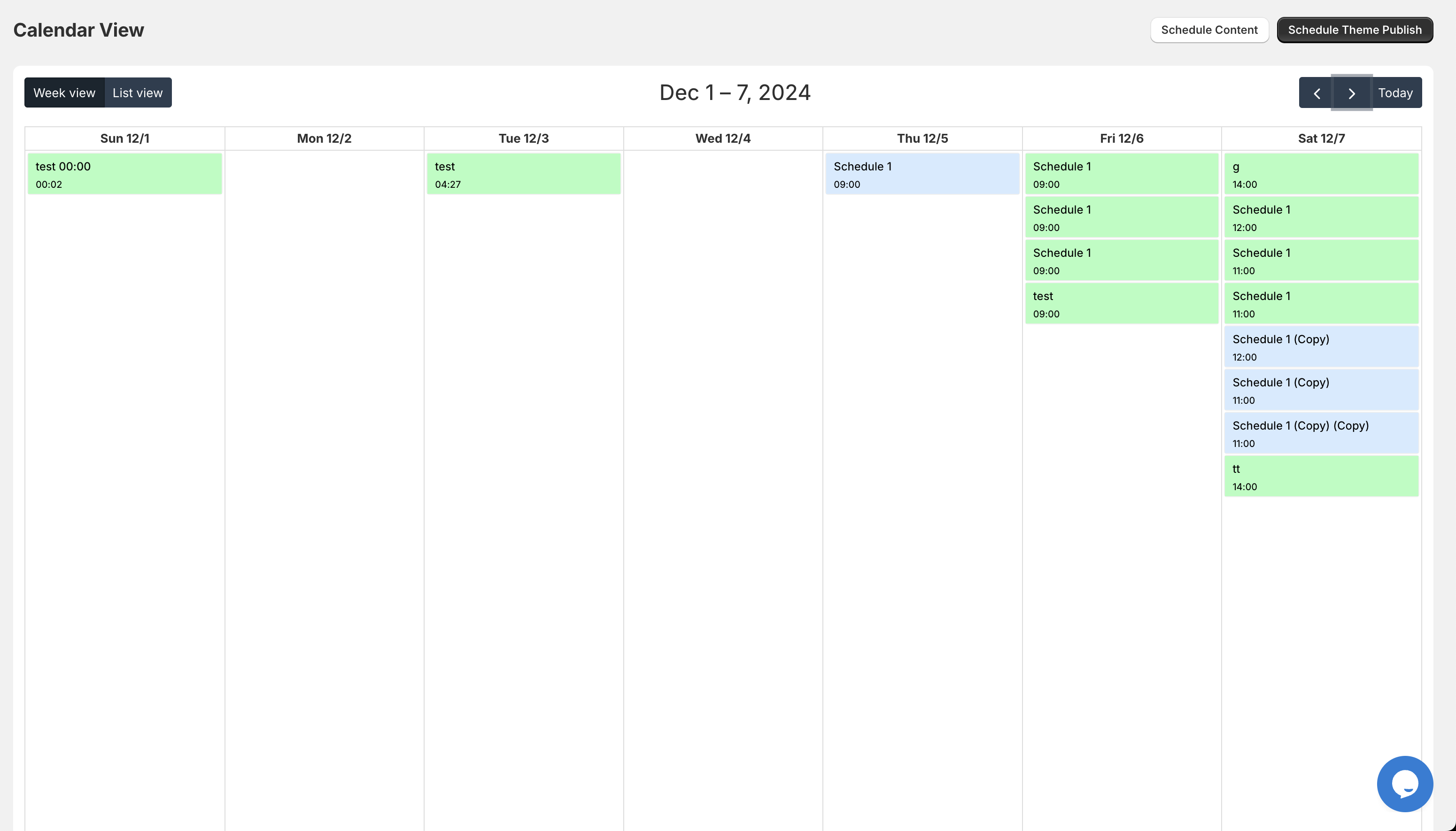
- Use the Timeline View: Use the timeline and calendar features within Maestro to get a bird's eye view of all upcoming changes. This helps prevent scheduling conflicts where two themes might be set to publish at the same time.
Conclusion: Take Back Your Time
Automating your custom Shopify themes visibility is a vital step toward scaling your ecommerce business. It moves your brand away from manual, error-prone processes and toward a sophisticated, automated workflow that supports growth and professionalizes your operations.
Whether you are a growing brand or a large enterprise requiring specialized Shopify Plus development, the ability to "set it and forget it" is a game changer. By spending just five minutes setting up a schedule today, you save yourself hours of manual labor and stress in the future.
If you are ready to streamline your store management and boost your operational efficiency, it is time to embrace the power of scheduling. Explore how automation can transform your business and allow you to focus on what really matters: building your brand and serving your customers. For more insights on optimizing your Shopify experience, check out our guide on adding a featured collection to your home page or learn how to perfectly set up your domain.