
As a Shopify expert, I often encounter merchants who are trapped in a cycle of manual storefront updates. Whether it is staying up until midnight to launch a Black Friday sale or waking up at dawn to revert a homepage banner after a flash sale ends, the manual approach is both exhausting and prone to human error. Merchants seeking to scale their operations eventually realize that manual intervention is the primary bottleneck to growth.
This is where the concept of storefront automation becomes a game-changer. By using tools like the Maestro Theme Scheduler, businesses can move away from reactive site management and toward a proactive, strategic workflow. This guide will walk you through the fundamentals of using this powerful tool to automate your Shopify store, ensuring your content is always fresh, relevant, and perfectly timed.
Why Storefront Automation is Essential for Modern E-commerce
Before diving into the how-to, it is important to understand why automation has moved from a luxury to a necessity. As your store grows, your marketing calendar becomes more complex. You are no longer just running one sale a year; you are managing seasonal shifts, weekly product drops, and targeted regional promotions.
Implementing automation provides several key advantages:
- Eliminate Human Error: Manual updates are often plagued by missed deadlines, broken links, or forgotten banners that stay live long after a promotion has ended.
- Reclaim Valuable Time: Your team should focus on strategy and growth, not on clicking the publish button at specific timestamps.
- Consistent Brand Experience: Automation ensures that every page on your site reflects the current brand message simultaneously, providing a professional experience for every visitor.
- Seamless Global Operations: If you sell in multiple time zones, automation allows you to align launches with local peak shopping hours without requiring staff to work around the clock.
For many high-growth brands, these benefits are why they seek ecommerce maintenance services that prioritize automated workflows over manual labor.
Understanding the Maestro Theme Scheduler
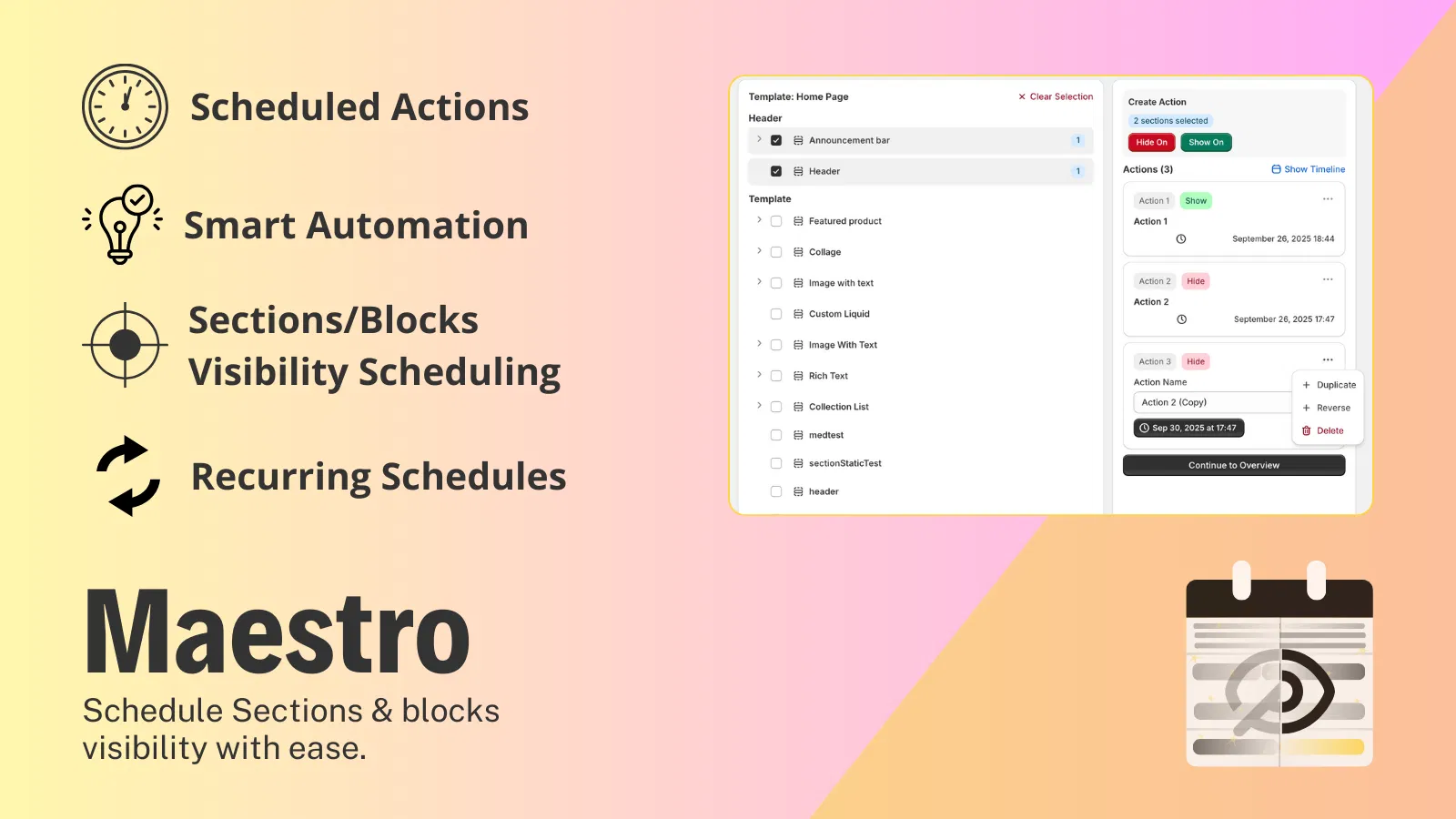
The Maestro Theme Scheduler is designed to bridge the gap between your marketing strategy and your Shopify theme execution. It allows you to schedule theme updates, control the visibility of specific sections, and manage recurring content changes with precision.
While many merchants start by looking for custom shopify themes to improve their look, the real efficiency comes from how those themes are managed. Maestro provides the "set it and forget it" infrastructure that turns a static theme into a dynamic, automated storefront.
Core Capabilities
The app focuses on three primary pillars of automation:
- Scheduled Theme Publishing: The ability to prepare an entire theme in the background and set it to go live at a specific date and time.
- Section and Block Visibility: Granular control over specific elements on a page, allowing you to show or hide content without swapping the entire theme.
- Recurring Automations: The power to set schedules that repeat on a daily, weekly, or monthly basis, which is ideal for recurring "Deal of the Week" or weekend-only promotions.
Step-by-Step: Setting Up Your First Automated Schedule
Getting started with Maestro is straightforward, but following a structured process ensures your first automation is successful. Here are the simple steps to take your first leap into storefront automation.
Step 1: Access the Dashboard and Select Content
Navigate to your Maestro dashboard and identify the theme you want to manage. Most merchants keep a "Development" or "Campaign" version of their theme where they make changes before scheduling them to go live.
- Select the specific theme from your list of available Shopify themes.
- Click on the "Schedule Content" button to begin the configuration process.
- Ensure your theme is fully prepared and previewed before you set the schedule.
Step 2: Create a Schedule Group
Maestro uses "Schedule Groups" to help you organize related actions. For example, if you are running a Valentine’s Day sale, your group might include a schedule to turn on the promotion and another schedule to turn it off.
- Assign a clear, descriptive name to your group (e.g., Spring Collection Launch 2026).
- Add internal notes to describe the goal of the campaign for other team members.
- Group related schedules together so you can manage the entire campaign lifecycle from one panel.
Step 3: Configure Individual Schedules
This is where the technical precision happens. You will define exactly what happens and when.
- Select Action Type: Choose whether you are publishing a full theme or just toggling the visibility of specific sections or blocks within custom shopify themes.
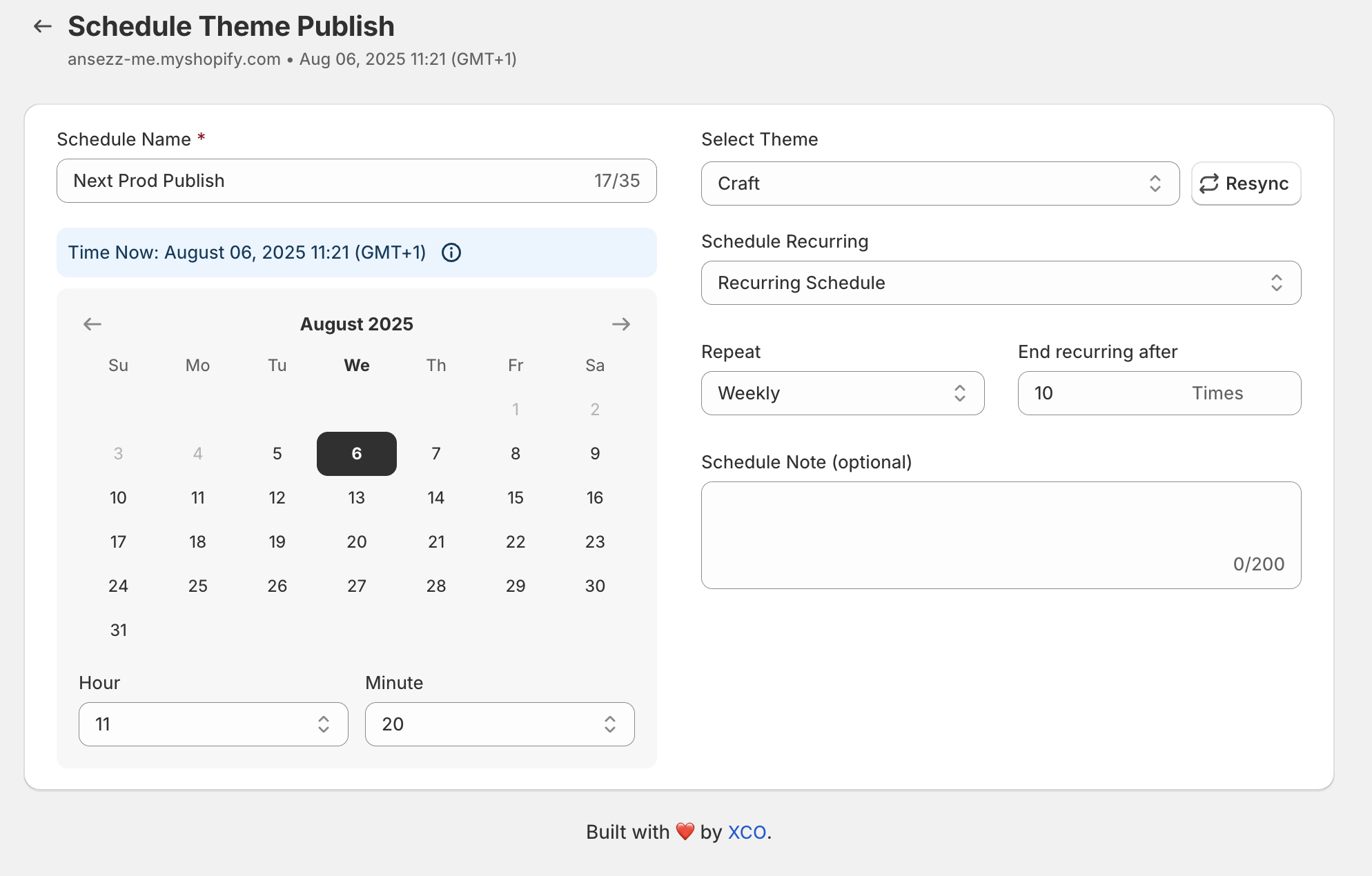
- Set Date and Time: Choose the exact moment the action should occur. Maestro respects your store's timezone settings to ensure accuracy.
- Enable Recurrence: If this is a task that repeats, such as a "Free Shipping Sunday" banner, click on "ADD repeat" and select your frequency.
- Define Rollback: Always plan the end of your promotion. Create a second schedule within the same group that reverts the site to its original state once the event is over.
Step 4: Validate and Save
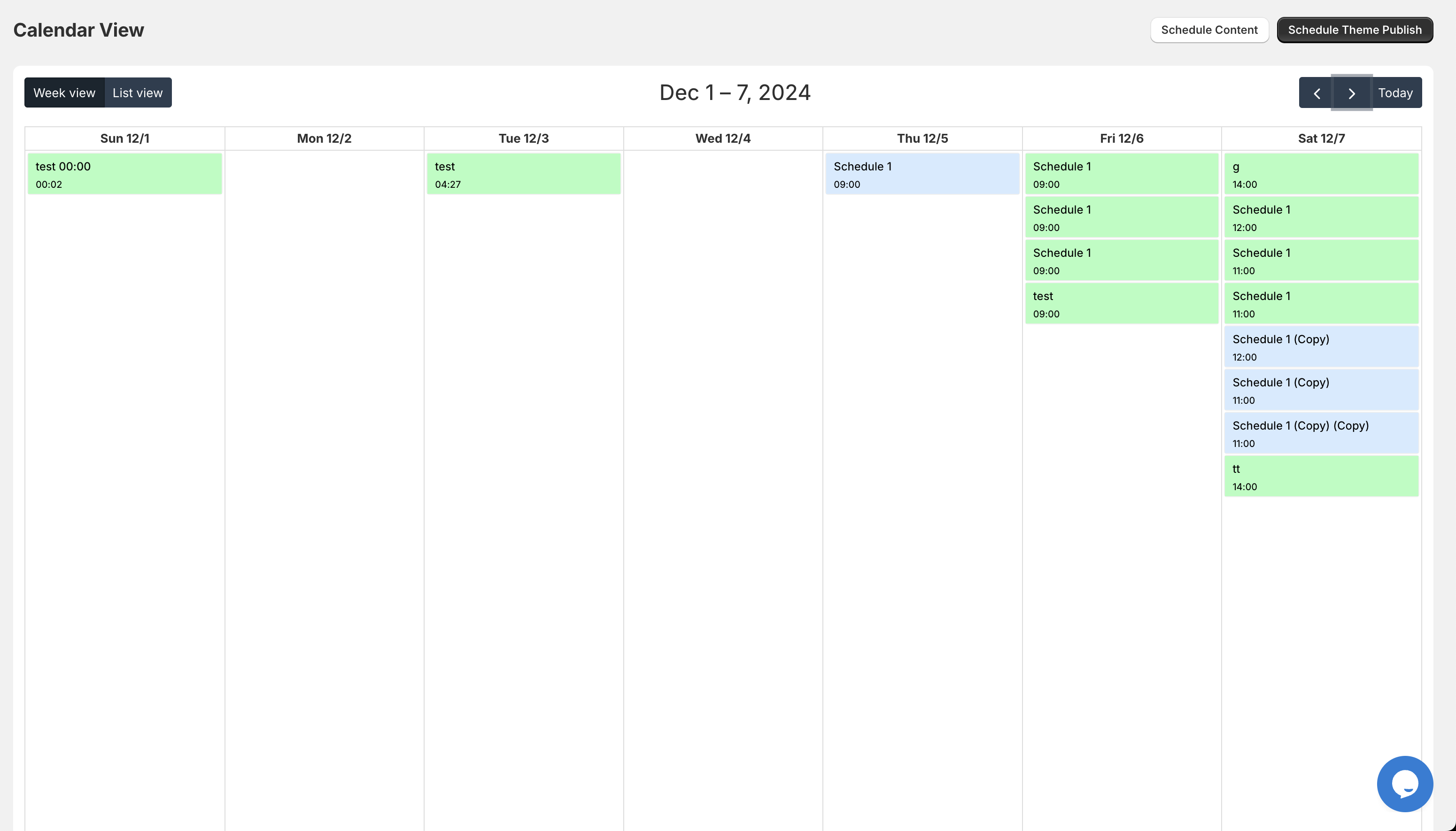
After completing the configuration, it is vital to review your timeline. Maestro provides a visual overview of your scheduled tasks.
- Review the calendar view to ensure there are no overlapping or conflicting schedules.
- Click "Save" to move your schedules into the active queue.
- Once saved, the app will handle the execution automatically, requiring no further manual input from your side.
Advanced Use Cases for Shopify and Shopify Plus Merchants
While beginners often start with simple theme swaps, the true power of Maestro is found in its more advanced applications, particularly for those engaged in shopify plus development.
Managing Seasonal Promotions and Flash Sales
Black Friday and Cyber Monday are the ultimate tests for any e-commerce team. With Maestro, you can schedule the launch of your BFCM theme for 12:00 AM on Friday and a "Last Chance" banner for 6:00 PM on Monday. By automating these transitions, your team can focus on monitoring site performance and managing customer support rather than wrestling with theme settings in the middle of the night.
Recurring Weekly Refreshes
Many successful stores use a "Drop" model where new products or collections are released every Tuesday or Thursday. Using the recurring schedule feature, you can set your "New Arrivals" section to become visible every Tuesday at 9:00 AM and hide the "Last Week's Hits" section at the same time.
Multi-Template Coordination
Large stores often have different layouts for different product categories. Maestro allows you to coordinate updates across multiple templates and pages simultaneously. You can ensure that your "Sale" tags appear on the homepage, collection pages, and product pages all at the exact same moment, maintaining a cohesive user journey.
How Automation Enhances Your Development Workflow
If you are working with an agency on custom shopify themes, automation serves as the final piece of the puzzle. Development teams can build high-performance, beautiful sections, and Maestro ensures those sections are deployed effectively.
For businesses utilizing shopify plus development, the ability to integrate these schedules with other automated workflows (like Shopify Flow) creates a truly autonomous e-commerce engine. You can trigger theme changes based on inventory levels, customer tags, or specific marketing triggers.

A Proactive Step Toward Scalability
Mastering the Maestro Theme Scheduler is a vital step for any merchant looking to professionalize their operations. It moves your business away from the "panic-publish" culture and into a world of organized, strategic execution. By leveraging these automation tools, you reduce the risk of errors, save hours of manual labor, and provide a more reliable experience for your customers.
Whether you are a solo founder or managing a large team on Shopify Plus, the ability to "set and forget" your storefront updates is one of the most effective ways to reclaim your time and focus on what truly matters: growing your brand.
If you are ready to stop manual updates and start automating, you can explore the Maestro Theme Scheduler or book a meeting with our team to discuss how we can optimize your Shopify store for maximum efficiency. For more insights on scaling your business, feel free to browse our Shopify blog or check our FAQs.