
As a Shopify expert, I often encounter merchants who are exhausted by the "manual dance" of e-commerce. You know the one: staying up until midnight to publish a theme for a flash sale, or waking up at dawn to ensure the "Summer Collection" banner actually appeared. It is a cycle that kills productivity and invites human error.
If you are seeking a way to reclaim your time while maintaining a high-converting storefront, the combination of Maestro Theme Scheduler and Shopify Flow is your new best friend. By connecting these two powerhouses, you move beyond simple scheduling into the realm of true automation. You stop being an operator and start being an architect.
Why Automate Your Theme Scheduling?
Before we dive into the "how," we must address the "why." Integrating your scheduling app with Shopify Flow is not just about being tech-savvy. It is about conversion rate optimization and operational sanity.
Here are the primary benefits of this integration:
- Eliminate Manual Fatigue: You no longer need to be physically present at your computer to toggle theme visibility or section updates.
- Precision Timing: Ensure your custom shopify themes go live at the exact millisecond your marketing emails hit the inbox.
- Data-Driven Triggers: Use Shopify Flow to change your site layout based on customer behavior, inventory levels, or order volume.
- Cross-Platform Harmony: Synchronize your storefront changes with other apps in your stack, from loyalty programs to CRM tools.
- Reduced Human Error: Automation removes the risk of forgetting to publish a specific section or accidentally deleting a promotional block during a live event.

Understanding the Integration Architecture
To build a smarter shopify store setup, you need to understand how these tools talk to each other. Maestro Theme Scheduler acts as the muscle that moves the parts of your theme. Shopify Flow acts as the brain that decides when those movements should happen.
When you integrate them, you create a workflow where "Event A" in your store triggers "Action B" in Maestro. For example, if a product goes out of stock, Flow can tell Maestro to hide the promotional section for that product across your entire site. This level of shopify integrations is what separates top-tier merchants from the rest.
Step 1: Install and Configure Maestro Theme Scheduler
The first step is ensuring your foundation is solid. You cannot automate what you have not yet set up.
- Navigate to the Shopify App Store: Search for Maestro Theme Scheduler and install it on your store.
- Access the Dashboard: Open the app within your Shopify Admin.
- Define Your Sections: Identify which parts of your custom shopify themes you want to control. This could be a hero banner, a countdown timer, or a specific collection grid.
- Create Your First Schedule: Set up a basic scheduled task within the app to ensure the core functionality is working correctly.
Step 2: Set Up Shopify Flow
If you are on a Shopify Plus or a standard Shopify plan, you should have access to Shopify Flow. It is a visual builder that uses a "Trigger, Condition, Action" logic.
- Open the Shopify Flow App: If you do not have it, install it from the Shopify App Store.
- Create a New Workflow: Click "Create workflow" to start from a blank canvas.
- Select Your Trigger: This is the event that starts the process. Common triggers include "Order created," "Inventory level changed," or "Customer joined segment."

Step 3: Connect Maestro as the Action Step
This is where the magic happens. Once your trigger is defined, you need to tell Flow to communicate with Maestro.
- Add an Action: After your trigger (and any conditions you have set), click the plus icon to add an action.
- Locate Maestro in the App List: In the sidebar, search for "Maestro Theme Scheduler" under the installed apps section.
- Choose the Relevant Action: Select the action you want Maestro to perform. This usually involves activating a pre-defined schedule or toggling the visibility of a specific theme section.
- Configure the Parameters: Input the specific Section ID or Theme ID that you want to manipulate. You can find these IDs within the Maestro app dashboard.
Step 4: Use Case: The Inventory-Triggered Banner
Let's look at a real-world scenario to boost your conversion rate optimization. Imagine you have a "Limited Edition" product. You want a massive hero banner to show only when stock is above 10 units.
- Set the Trigger: Inventory level changed.
- Set the Condition: If the inventory quantity of Product X is less than 10.
- Set the Action: Tell Maestro to hide the "Limited Edition Hero Section."
- Add an Alternative: Create a branch where if inventory is 0, Maestro publishes a "Sold Out / Join the Waitlist" section instead.
This ensures your site always reflects reality without you having to touch a single line of code or refresh a browser page.
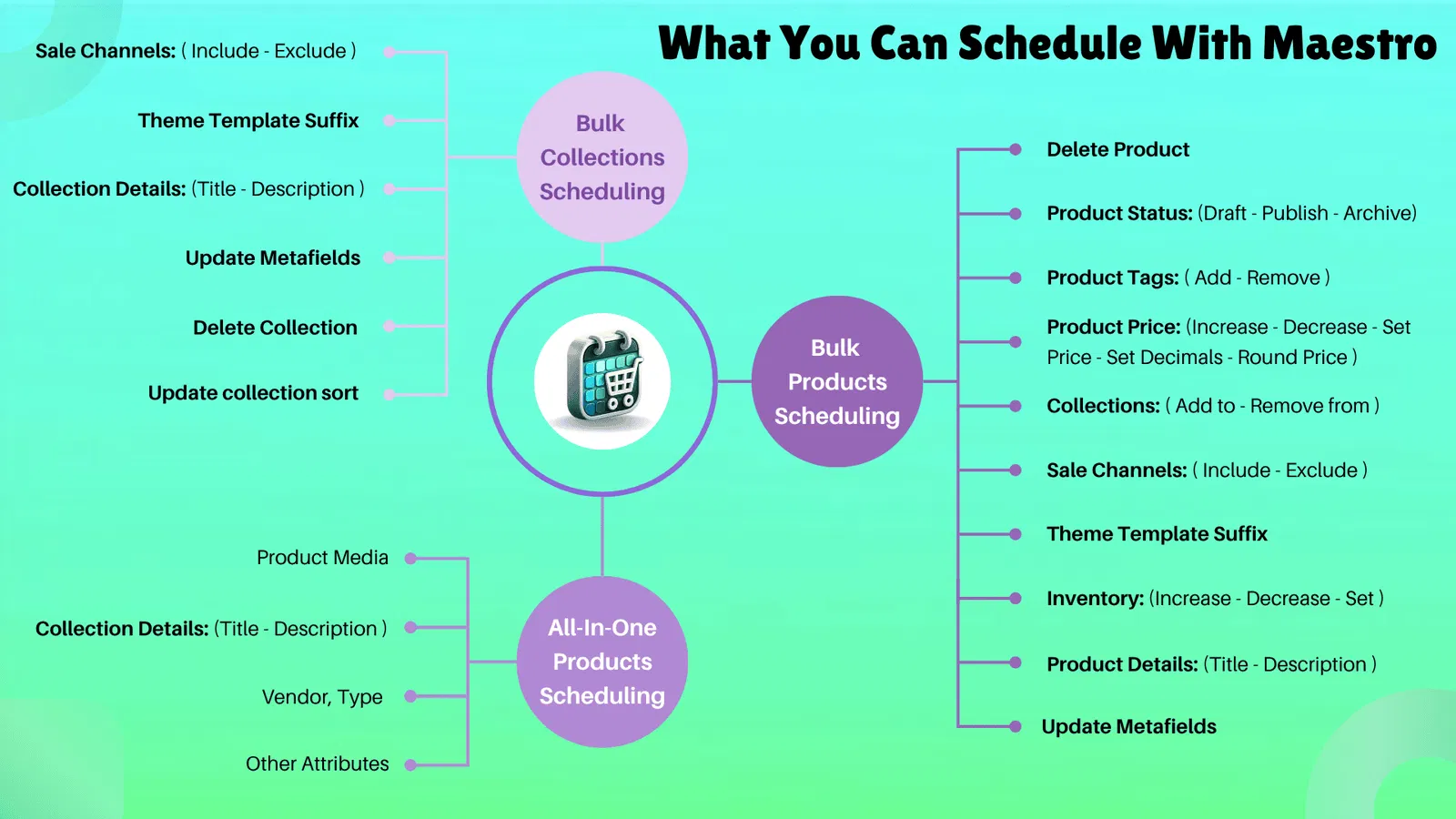
Step 5: Advanced Recurring Schedules
For merchants running complex cycles, like a "Weekly Drop" or "Weekend Specials," manual scheduling is still too much work. Use the recurring features within Maestro to handle the heavy lifting.
- Select "Recurring" in Maestro: Instead of a one-time date, choose a weekly or monthly pattern.
- Define the Active Window: Choose the start time (e.g., Friday at 6:00 PM) and the end time (e.g., Sunday at 11:59 PM).
- Select the Theme Elements: Pick the sections that should appear only during this window.
- Save and Forget: Once saved, Maestro will handle these transitions indefinitely.
Optimizing for Performance and Speed
A common concern with shopify design services and app integrations is site speed. Fortunately, Maestro is built with a minimalist approach. It does not bloat your liquid code with unnecessary scripts.
- Clean Code Execution: Maestro triggers changes at the server level or through efficient theme API calls, ensuring your shopify speed optimization remains intact.
- Preview Mode: Always use the preview function within Maestro to see how your scheduled changes look on a duplicate theme before they go live on your production site.
- Monitor Flow Logs: Check the Shopify Flow "Runs" tab regularly to ensure your triggers are firing as expected and that there are no communication errors between the apps.

Troubleshooting Common Integration Hurdles
Even with the best tools, you might hit a snag. Here is how to handle them like a pro:
- Trigger Not Firing: Ensure your Shopify Flow workflow is turned on. It sounds simple, but it is the most common reason for failure.
- Section Not Appearing: Double-check the Section ID in Maestro. If you have recently changed your theme or updated its version, the ID might have changed.
- Conflict With Other Apps: If you use multiple apps to control visibility, ensure they are not fighting over the same section. Stick to Maestro as your primary scheduler for theme elements.
- Permission Issues: Ensure Maestro has the necessary permissions to edit your themes. You can verify this in the "Apps and sales channels" section of your Shopify settings.
Taking Your Store to the Next Level
Integrating Maestro Theme Scheduler with Shopify Flow is a vital step toward a truly autonomous e-commerce business. It allows you to focus on growth strategies and creative direction rather than the minutiae of daily site updates.
Whether you are preparing for a massive Black Friday event or just want to make sure your "Monday Motivation" banner actually shows up on Monday, this integration provides the reliability you need. It turns your storefront into a dynamic, living entity that responds to your business needs in real-time.
As you become more comfortable with these tools, you can explore even more complex workflows. You might trigger theme changes based on weather conditions in your primary market, or swap out your entire homepage layout for B2B customers using shopify b2b wholesale channel tags. The possibilities are only limited by your imagination.
If you find the technical setup daunting or want a bespoke automation strategy, don't hesitate to reach out. At XCO Agency, we specialize in helping merchants navigate these complexities. You can book a meeting with our team to discuss how we can optimize your store.
Automating your theme scheduling is a proactive step that pays dividends in both time saved and revenue generated. Stop working for your store and start making your store work for you. Install the integration, set your triggers, and go take a well-deserved break. Your store has it from here.