
As a Shopify expert, I often witness the chaotic scramble that happens behind the scenes of a major flash sale or a seasonal collection launch. Merchants are often tethered to their laptops at midnight, manually clicking through the Shopify admin to publish a theme, update a banner, or swap out a homepage section. It is a stressful way to run a high-growth business, and frankly, it is unnecessary. If you are looking for a way to reclaim your time while ensuring your storefront remains dynamic, the integration between Maestro Theme Scheduler and Shopify Flow is the automation hack you have been searching for.
The modern e-commerce landscape demands agility. Your store needs to change its look and feel based on inventory levels, customer behavior, and marketing calendars. Doing this manually is not just a drain on resources, it is a liability. One missed click can lead to broken layouts or expired promotions staying live far too long, damaging your brand authority. By combining the visual scheduling power of Maestro with the logic-based automation of Shopify Flow, you create a self-running storefront that scales with your ambition.
The Strategic Importance of Automation
Before we dive into the technical setup, it is vital to understand why this specific combination is a game-changer for your shopify store setup. Automation is not just about saving a few minutes. It is about strategic precision.
Elevate Conversion Rate Optimization
Conversion rate optimization is often viewed through the lens of button colors or checkout flows, but timing is equally critical. Presenting the right offer at the exact moment a customer lands on your site can significantly boost sales. With Maestro Theme Scheduler, you can ensure that your high-converting custom shopify themes are triggered to go live exactly when your ad campaigns hit their peak.
Eliminate Operational Bottlenecks
When you rely on manual updates, your growth is limited by the physical capacity of your team. If your marketing manager is out sick during a holiday weekend, your site updates might stall. Automation ensures that your business logic is baked into the platform itself. This reliability is why many Plus merchants choose Maestro as their primary tool for theme orchestration.

Understanding the Components
To build an effective automated workflow, you need to understand how these two powerful tools interact.
What is Shopify Flow?
Shopify Flow is a low-code automation platform that allows you to create "if this, then that" logic within your store. It uses triggers (events that start the workflow), conditions (criteria that must be met), and actions (the tasks the workflow performs). It is the central nervous system of your store automation.
What is Maestro Theme Scheduler?
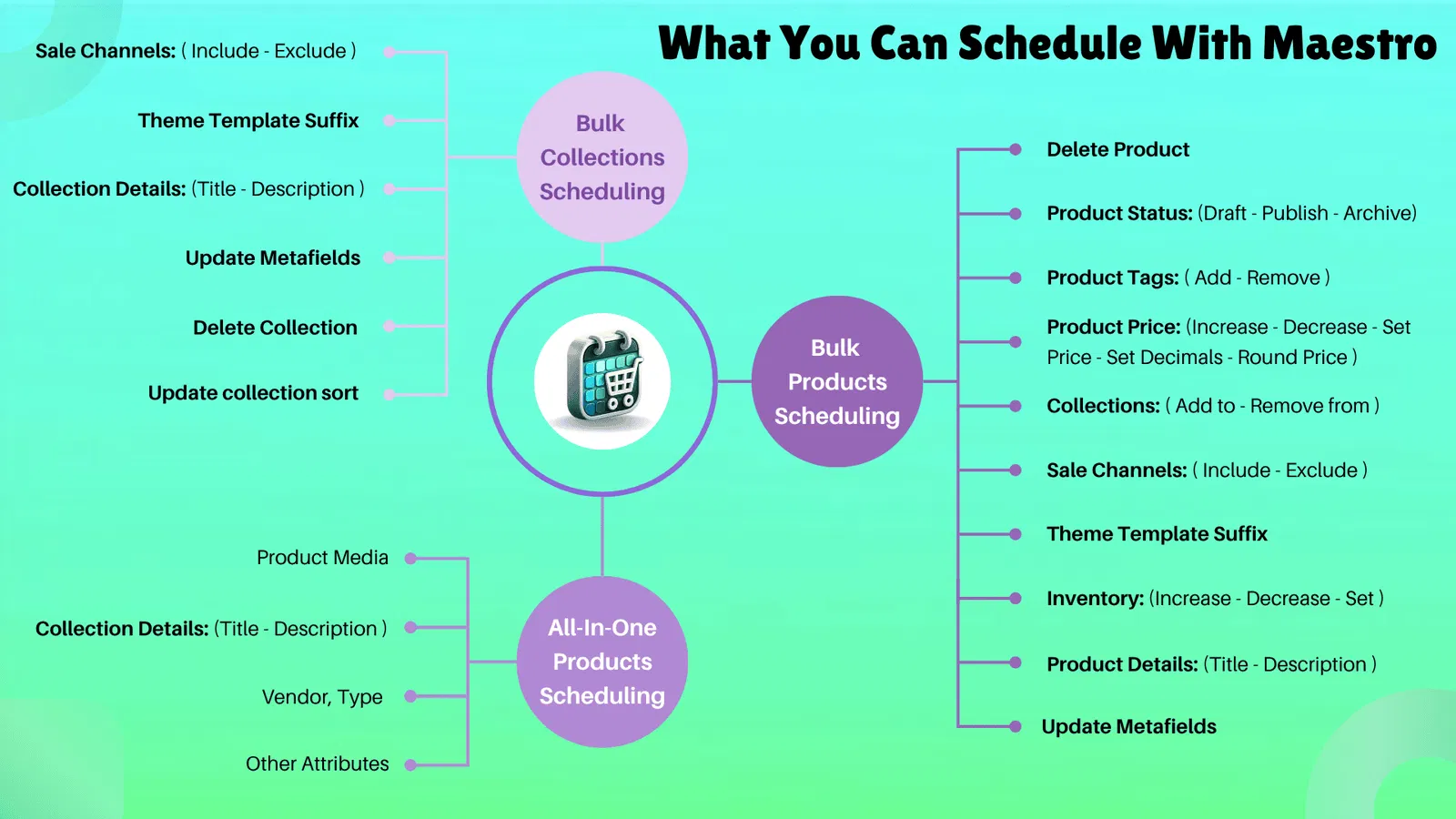
Maestro Theme Scheduler is a specialized tool designed to give you granular control over your storefront visibility. While Shopify has native scheduling for products, it lacks a robust system for scheduling theme changes, section visibility, and block updates. Maestro fills this gap, allowing you to plan your entire visual roadmap months in advance. You can explore the full range of features at the Maestro Theme Scheduler page.
How the Integration Works
The synergy between these tools happens when Shopify Flow acts as the logic engine and Maestro acts as the execution arm for theme-related tasks. While Maestro can handle time-based scheduling on its own, Shopify Flow allows you to trigger those theme changes based on other data points within your ecosystem.

Step 1: Install and Connect
The first step is ensuring you have the right tools installed. You will need a Shopify store (preferably on a plan that supports Shopify Flow) and the Maestro app.
- Navigate to the Shopify App Store and install Maestro Theme Scheduler.
- Once installed, open the app and complete the initial onboarding to sync your current themes.
- Ensure Shopify Flow is active in your admin panel.
- In the Maestro app settings, look for the integrations tab to ensure the connection to Flow is toggled on.
Step 2: Define Your Trigger in Shopify Flow
Think about the event that should trigger a change in your theme. Common triggers include:
- Inventory level changes: When a specific collection falls below a certain stock level.
- Customer tags: When a VIP customer logs in, you might want to show a specific theme section.
- Order milestones: When your store reaches a specific daily revenue goal, trigger a "Celebration" banner.
- External API calls: Connecting your CRM or a third-party marketing tool.
Step 3: Set Your Conditions
You do not always want an action to trigger every time. Conditions allow you to filter the automation.
- Select the "Condition" block in Shopify Flow.
- Define the parameters, such as "If the product tag is 'limited-edition'" or "If the customer's total spent is over one thousand dollars."
- This ensures your theme changes are targeted and relevant to the specific context.
Step 4: Configure the Maestro Action
This is where the magic happens. After defining your trigger and conditions, you will select an action.
- Search for "Maestro" in the list of available actions within Shopify Flow.
- Choose the specific action you want to execute, such as "Activate Theme" or "Show Section."
- Map the specific theme ID or section ID from your Maestro dashboard.
- Save and enable the workflow.
Real World Use Cases for Automation
To help you visualize how this fits into your daily operations, here are a few advanced scenarios we often implement for our clients at XCO Agency.
The Low Stock Scarcity Play
As a Shopify expert, I know that scarcity drives sales. You can set up a Flow that triggers when a core product collection has less than ten items in stock. The action? Maestro automatically swaps your standard header banner for a high-urgency countdown or a "Last Chance" section. This is conversion rate optimization at its finest, running entirely on autopilot.
The Midnight Launch Without the Midnight Shift
For many brands, a new collection drops at exactly 12:00 AM. Instead of having a team member stay up to publish the new theme, you can schedule the launch via Maestro. If you want to get fancy, you can use Shopify Flow to trigger a "Launch Mode" theme only after your backend inventory has been fully synced from your ERP, ensuring customers never see an "Out of Stock" button on a new arrival.
Best Practices for a Seamless Workflow
While automation is powerful, it requires a structured approach to prevent conflicts.
Test in a Sandbox Environment
Never enable a complex Flow integration on your live site without testing. Duplicate your current theme and run the automation on the unpublished version first. Ensure that the triggers fire correctly and that Maestro executes the theme change as expected.
Monitor Your Site Speed
Every integration and automation layer adds a level of complexity. While Maestro is built for efficiency, it is always a proactive step to audit your performance. If you are concerned about how these changes affect your load times, check out our Shopify speed optimization services.
Keep Your Naming Conventions Clean
When you have multiple themes and dozens of scheduled sections, things can get confusing. Use a clear naming convention for both your themes in Shopify and your schedules in Maestro. For example, use "PROMO-BFCM-2026-HERO" instead of "New Banner 1." This makes it much easier to select the right IDs when building your Shopify Flow workflows.
Managing on the Go
One of the best parts of this modern shopify store setup is that you are not tied to a desktop. The interfaces for both Shopify Flow and Maestro are increasingly mobile-friendly. You can monitor your automated tasks or make quick adjustments from your phone while you are away from the office.

The Final Step Toward Store Independence
Integrating Maestro Theme Scheduler with Shopify Flow is a vital step toward building a truly autonomous e-commerce business. By removing the need for manual intervention during routine site updates, you free up your team to focus on high-level strategy, creative direction, and customer acquisition.
As you become more comfortable with these tools, you will find that the possibilities for custom shopify themes and dynamic storefronts are virtually limitless. Whether you are running a small boutique or a global enterprise, this automation hack gives you the professional edge needed to stay ahead in a competitive market.
If you are ready to take your store to the next level but feel a bit overwhelmed by the technical setup, we are here to help. At XCO Agency, we specialize in building high-performance Shopify environments that work as hard as you do. You can book a meeting with our team to discuss your automation goals, or dive into the app yourself by visiting the Maestro dashboard.
Stop managing your store by the clock. Start managing it by design. With Maestro and Shopify Flow, your storefront is always exactly where it needs to be, right on time.