
As a Shopify expert, I often encounter store owners who treat their email inbox like a digital junk drawer. It starts innocently enough with a few "where is my order" queries, but before you know it, you are drowning in a sea of warranty claims, grainy photos of broken products, and frustrated customers asking for updates. If your current strategy for handling returns and warranties involves digging through threads from three weeks ago, you are not just losing time: you are losing customer loyalty.
In the world of enterprise ecommerce solutions, efficiency is the only currency that matters. Customers do not just buy your products; they buy the peace of mind that comes with knowing you will stand by those products if something goes wrong. This is where Claimify ‑ Support & Claims enters the chat. It is a robust tool designed to move support requests from the chaos of your inbox to a unified dashboard, automating the boring stuff so you can focus on growing your brand.
Why Automated Warranty Management is a Game Changer
Before we dive into the technical setup, we need to address the "why." Why should you spend five minutes of your precious day setting this up? The answer lies in the post-purchase experience. The moment a customer realizes a product is defective, their relationship with your brand hits a critical fork in the road. They will either become a lifelong fan because you made the replacement easy, or they will leave a one-star review because you made them jump through hoops.
Integrating an automated system like Claimify offers several immediate benefits:
- Centralized Operations: Stop searching for order numbers in Gmail. Every claim is tied to the original Shopify order automatically.
- Reduced Support Costs: By allowing customers to self-serve, you significantly reduce the headcount needed to manage basic inquiries.
- Faster Turnaround Times: Automated validation rules ensure that only legitimate claims reach your desk, allowing for instant approvals where appropriate.
- Professionalism: A dedicated claims portal looks a lot more like a high-end brand than an "email us at support@store.com" text link.
- Data Accuracy: Force customers to provide the exact information you need (photos, batch numbers, descriptions) before they can even submit the request.
If you are looking to scale, you need to think about ecommerce maintenance services and how to keep your store running like a well-oiled machine without your constant intervention.
Step 1: Installing Claimify From the Shopify App Store
The first step is the easiest, but it is the foundation for everything else. You need to get the app into your ecosystem.
- Navigate to the Shopify App Store and search for "Claimify ‑ Support & Claims."
- Click the "Install" button. This will redirect you to your Shopify admin panel.
- Review the permissions. Claimify needs access to your orders and customer data to function properly. This is standard for any enterprise-grade support tool.
- Confirm the installation and wait for the dashboard to load.
Once installed, you will see a clean, intuitive interface. Unlike some legacy apps that look like they were designed in 1998, Claimify feels native to the modern Shopify experience.

Step 2: Branding Your Claims Portal
Your claims portal should not feel like a third-party site. It should look, feel, and breathe your brand. If a customer is already annoyed that their product broke, sending them to a generic, ugly form will only make it worse.
- Navigate to the "Settings" or "Appearance" tab within the Claimify app.
- Upload your brand logo. Ensure it is high resolution so it looks sharp on mobile devices.
- Match your brand colors. Select the hex codes that correspond to your storefront buttons and accents.
- Customize the text. Use your brand voice. If you are a casual, fun brand, say "Oops! Let's get that fixed for you." If you are a high-end luxury brand, stick to "Submit a Warranty Inquiry."
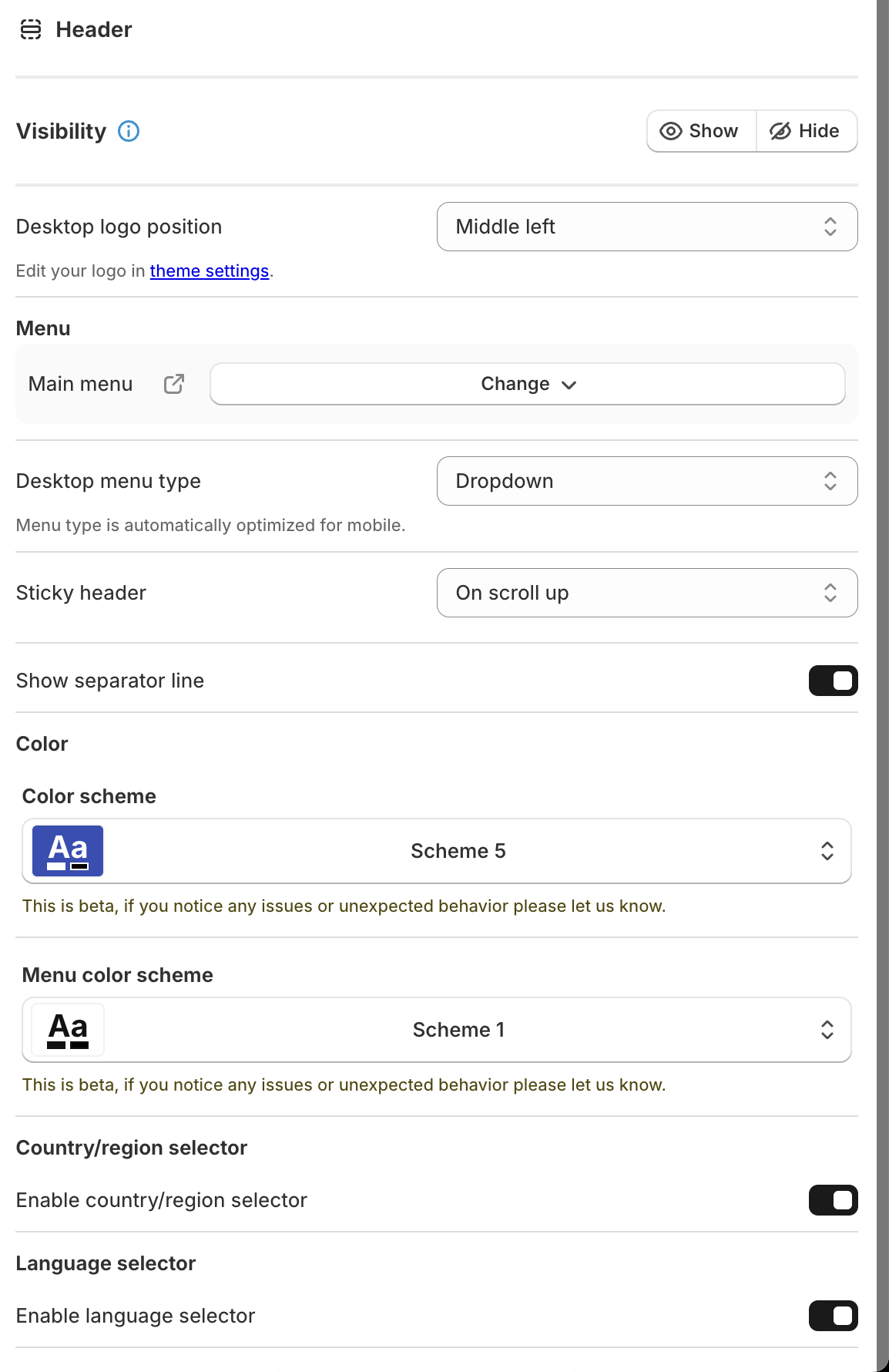
Customizing the header and footer is vital for maintaining a cohesive user experience. If you need help with deeper theme customization, you might want to look into how to add a custom font to your store to ensure the portal matches your typography perfectly.
Step 3: Setting Up Automated Validation Rules
This is where the magic happens. You do not want to manually check if every single claim is within the warranty period. You have better things to do, like looking at your conversion rates or planning your next big launch.
- Go to the "Rules" or "Logic" section of the app.
- Define your warranty window. For example, if you offer a 1-year warranty, set the rule to only allow claims for orders placed within the last 365 days.
- Exclude specific products. If you sell "Final Sale" items or gift cards that are not eligible for warranty, add them to the exclusion list.
- Require documentation. Toggle the "Photo Upload Required" setting to "On." This prevents customers from submitting vague claims without proof of the issue.
- Set up auto-approvals for low-value items. If a product costs you $2 to manufacture, it is often cheaper to auto-approve the replacement than to pay a support agent to review it.
By implementing these rules, you are essentially hiring a tireless digital assistant who works 24/7 for a fraction of the cost. This is the heart of effective enterprise ecommerce solutions.

Step 4: Adding the Portal to Your Storefront and Thank-You Page
If a customer cannot find your warranty page, they will go back to emailing you. Visibility is key to the success of this integration.
- The Navigation Menu: Create a new menu item in your footer called "Warranty & Returns" and link it to the Claimify portal URL.
- The Customer Account Page: Claimify integrates seamlessly with Shopify customer accounts. Ensure the link is visible in the "My Orders" section so customers can initiate a claim directly from their purchase history.
- The Thank-You Page: This is a pro tip. Use the Shopify checkout editor to add a small section on the thank-you page that says "Save this link for future warranty claims." It builds immediate trust.
If you are concerned about how these additions might affect your store's performance or user flow, consider getting an optimization audit report. It is a proactive step to ensure your new support features are helping, not hindering, your conversion rate.
Step 5: Managing Claims via the Unified Dashboard
Now that the front-end is set up, let's talk about your new home: the Claimify dashboard. Once the claims start rolling in, you will no longer see them as individual emails. Instead, they will appear as actionable tickets in a centralized list.
- Open the Claimify app in your Shopify admin.
- Review the "Pending" queue. Here, you can see the customer name, order number, and the photos they uploaded.
- Use the "Bulk Actions" tool. If you have a known issue with a specific batch of products, you can approve all related claims in one click.
- Communicate within the app. You can send messages back to the customer directly from the dashboard. This keeps the entire history of the claim in one place.
This level of organization is what separates amateur hobbyists from professional merchants. It is a vital component of ongoing ecommerce maintenance services that keep a business healthy as it scales.
The Psychological Impact of a Smooth Warranty Process
We often focus on the technical side of things, but the psychology of the consumer is just as important. A warranty claim is a moment of friction. By using Claimify to automate the process, you are telling the customer that you value their time.
When a customer submits a claim and receives an immediate automated confirmation email with a tracking number for their replacement, the "pain" of the broken product evaporates. They go from being a frustrated victim to a protected customer. This positive reinforcement is what drives word-of-mouth marketing and high lifetime value.
For those running complex operations, integrating this with other tools like Shopify Flow can take things even further. You could, for example, trigger a specialized email sequence in Klaviyo once a warranty claim is approved, offering the customer a discount on their next purchase as a "sorry for the trouble" gesture.
Moving From Email Chaos to Operational Excellence
Integrating Claimify into your Shopify storefront is one of those rare tasks that takes very little time but offers massive, long-term returns. In about five minutes, you can transform a manual, error-prone process into a sleek, automated system that delights customers and saves your sanity.
As you continue to optimize your store, remember that every point of contact is an opportunity to reinforce your brand's authority. Whether it is setting up your domain perfectly or adding a favicon for usability, the details matter.
Stop digging through your inbox. Stop guessing which orders are still under warranty. Install Claimify, set your rules, and get back to the work that actually grows your business. Your customers (and your inbox) will thank you.
If you are ready to take your enterprise ecommerce solutions to the next level, or if you need help managing the technical heavy lifting of your Shopify store, our team at XCO Agency is here to help. From full-scale development to specialized ecommerce maintenance services, we ensure your technology works as hard as you do. Reach out today to see how we can optimize your post-purchase experience and beyond.