
As a Shopify expert, I often see store owners overlooking one of the most significant friction points in their customer journey: the gift card experience. While gift cards are a fantastic way to boost immediate cash flow, the post-purchase experience is frequently a source of frustration. Customers often find themselves hunting for old emails or, worse, having to contact support just to find out how much money they have left to spend.
When you are in the middle of a shopify store setup, or even if you are performing routine ecommerce maintenance services, automating this process should be at the top of your list. Providing a self-service way for customers to check their balances not only improves the user experience but also significantly reduces the volume of repetitive support tickets hitting your inbox.
In this guide, I will walk you through why automation is vital and how you can use Gift Card Checker By Maestro to create a seamless, branded experience for your shoppers.
The Hidden Cost of Manual Gift Card Support
I often work with merchants who treat gift cards as a set-it-and-forget-it feature. However, the reality is that manual balance checks are a drain on resources. Every time a customer reaches out to ask "How much is left on my card?", your team spends several minutes locating the card in the Shopify admin, verifying the customer identity, and replying.
Here are the primary reasons why manual checks are detrimental to your growth:
- Increased Support Costs: The time spent on balance inquiries is time not spent on closing sales or solving complex customer issues.
- Customer Friction: Shoppers want answers instantly. Forcing them to wait 24 hours for a support reply often leads to abandoned carts.
- Lost Revenue: If a customer cannot easily see they have $15 left, they are less likely to return to your store to "top off" a purchase.
- Brand Perception: Modern shoppers expect self-service tools. A lack of automation can make a professional store look outdated.
By integrating automation into your shopify store setup, you transform a support burden into a marketing opportunity.

Why Gift Card Checker By Maestro is the Solution
During my years providing ecommerce maintenance services, I have tested various methods for balance checks. Some merchants try to use complex Shopify Flow triggers or sync everything to Klaviyo. While those methods work, they often require technical expertise and constant monitoring.
Gift Card Checker By Maestro was designed to solve this problem with simplicity in mind. It provides a dedicated widget that lives on your site, allowing customers to enter their code and see their balance in real-time.
Key Benefits of the Maestro Approach
- One-Click Setup: You do not need to be a developer to get this running. It integrates directly with your existing Shopify theme.
- Brand Consistency: You can customize the look and feel of the widget to ensure it looks like a native part of your website, not a clunky third-party add-on.
- Mobile Optimized: Most shoppers are on their phones. The balance checker is fully responsive, ensuring a smooth experience across all devices.
- Reduced Inquiries: By giving customers the "Check Balance" button, you proactively eliminate the need for them to email you.
Step-by-Step: Automating Your Balance Checks
Setting up a balance checker is one of the most impactful things you can do during your shopify store setup. Here is how to do it efficiently.
Step 1: Install the App
Navigate to the Shopify App Store and locate Gift Card Checker By Maestro. Click "Install" and follow the prompts to grant the necessary permissions. Because it is built specifically for Shopify, the integration is seamless.
Step 2: Configure the Widget
Once inside the app dashboard, you can define how the widget appears. You should:
- Select the colors that match your brand palette.
- Upload your logo to keep the experience consistent.
- Choose where the widget will appear (usually on a dedicated "Gift Card" page or in the footer).
Step 3: Embed the Checker
The app provides a simple code snippet or a theme block. If you are using an Online Store 2.0 theme, you can simply add the "Gift Card Checker" block to any page via the Shopify Theme Editor. I recommend creating a dedicated page at yourstore.com/pages/check-balance.
Step 4: Update Your Navigation
Ensure your customers can actually find the tool. Add a link to the balance checker in your:
- Header navigation under "Support" or "Shop".
- Footer menu near your "FAQ" link.
- Order confirmation emails for gift card purchases.

Enhancing Customer Loyalty Through Transparency
Automation is not just about saving time; it is about building trust. When a customer knows they can easily access their funds, they feel more confident shopping with you. This transparency fosters long-term loyalty.
I often suggest to my clients that they use the balance check page as a re-engagement tool. Once a customer checks their balance and sees they have a remaining credit, that is the perfect moment to show them a "Featured Collection" or "Trending Products" section. You can learn more about optimizing your layout in our guide on adding a featured collection to your home page.
Balancing Technical Setup with Accessibility
While the research suggests that you could use the Shopify Admin GraphQL API to build a custom solution, I rarely recommend this for most merchants unless they have a massive developer budget. The goal of a smart shopify store setup is to stay lean and efficient.
Using a dedicated app like Maestro allows you to focus on selling rather than maintaining custom code. If you find yourself struggling with the more technical aspects of your store, such as Google Tag Manager setup or custom font integration, our ecommerce maintenance services are designed to handle that heavy lifting for you.

Advanced Tips for Gift Card Management
Once you have automated the balance check process, you can take things a step further to maximize the value of every gift card issued.
- Promote the Checker in Success Messages: When a customer applies a gift card at checkout but doesn't use the full amount, include a link to the balance checker in their order confirmation.
- Audit Your UX: Use a store optimization audit to see where customers are dropping off. Often, they leave because they are unsure of their remaining balance.
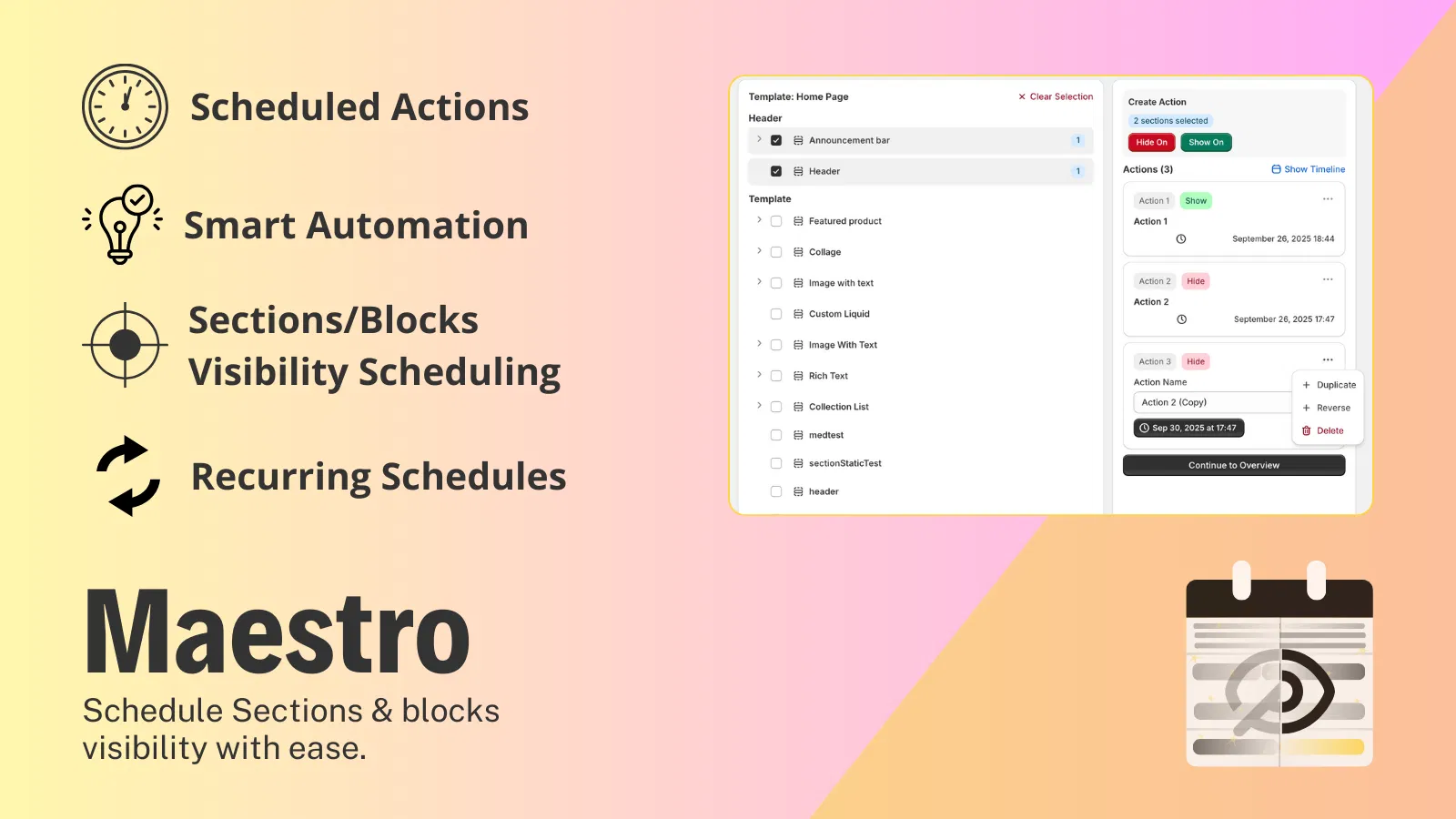
- Combine with Other Automations: Use the Maestro suite to schedule theme changes or product updates. If you are running a gift card promotion, you can use the Maestro Theme Scheduler to automate the visibility of your banners.
Conclusion: A Vital Step for Scalable E-Commerce
Automating gift card balance checks is a proactive step that every serious merchant should take. By implementing a self-service widget like Gift Card Checker By Maestro, you remove a major hurdle for your customers and free up your support team to handle high-value tasks.
In the competitive world of e-commerce, the winner is usually the one who makes the shopping experience the easiest. Whether you are in the middle of a fresh shopify store setup or looking to refine your existing operations through ecommerce maintenance services, this small change can lead to significant improvements in customer satisfaction and repeat purchase rates.
Stop letting manual support tickets slow you down. Enhance your store's usability, maintain your brand's professional look, and give your customers the autonomy they crave. If you want to dive deeper into store optimization, I highly recommend checking out our post on perfectly setting up your domain to ensure your store's foundation is as solid as your customer service.
Ready to take the next step? Installing the Gift Card Checker is the easiest way to start working smarter, not harder.