
As a Shopify expert, I often encounter merchants who live in a state of constant anxiety during the lead-up to a major promotional event. Whether it is a midnight product drop, a high-stakes flash sale, or the annual chaos of Black Friday Cyber Monday, the manual workload required to update a storefront is immense. Merchants are often seeking a way to step away from the keyboard and trust that their store will reflect the right content at the right time.
The reality of managing custom Shopify themes is that manual updates are prone to human error. A forgotten banner, a broken link in a new section, or a delay in clicking the "publish" button can result in thousands of dollars in lost revenue. This is particularly true for high-growth brands that require sophisticated ecommerce maintenance services to keep their operations running smoothly.
In this guide, I will show you how to move beyond manual updates and embrace the "set it and forget it" power of automation. By using the right tools and strategies, you can ensure your store is always optimized for conversions without sacrificing your sleep or your sanity.
Why Manual Theme Management Fails During High-Traffic Events
Before we dive into the solution, it is vital to understand why the traditional method of updating themes manually is a significant risk for your business. When you are managing a complex storefront, especially one built with custom Shopify themes, the margin for error is razor-thin.
-
Timing Inconsistencies
- Manually publishing a theme at exactly 12:00 AM is difficult for small teams and exhausting for solo founders.
- Network latency or Shopify admin delays can cause your sale to start late, frustrating customers who arrived early.
-
Version Control Issues
- When multiple team members are working on different versions of a theme, it is easy to accidentally publish an outdated version.
- Manual overrides can wipe out critical code updates made by your development team during recent shopify plus development cycles.
-
Stress and Burnout
- The pressure of live updates during peak hours leads to mistakes that could have been avoided with a calm, pre-planned approach.
- Automation allows your team to focus on customer support and marketing performance rather than technical execution.

The Power of the Maestro Theme Scheduler
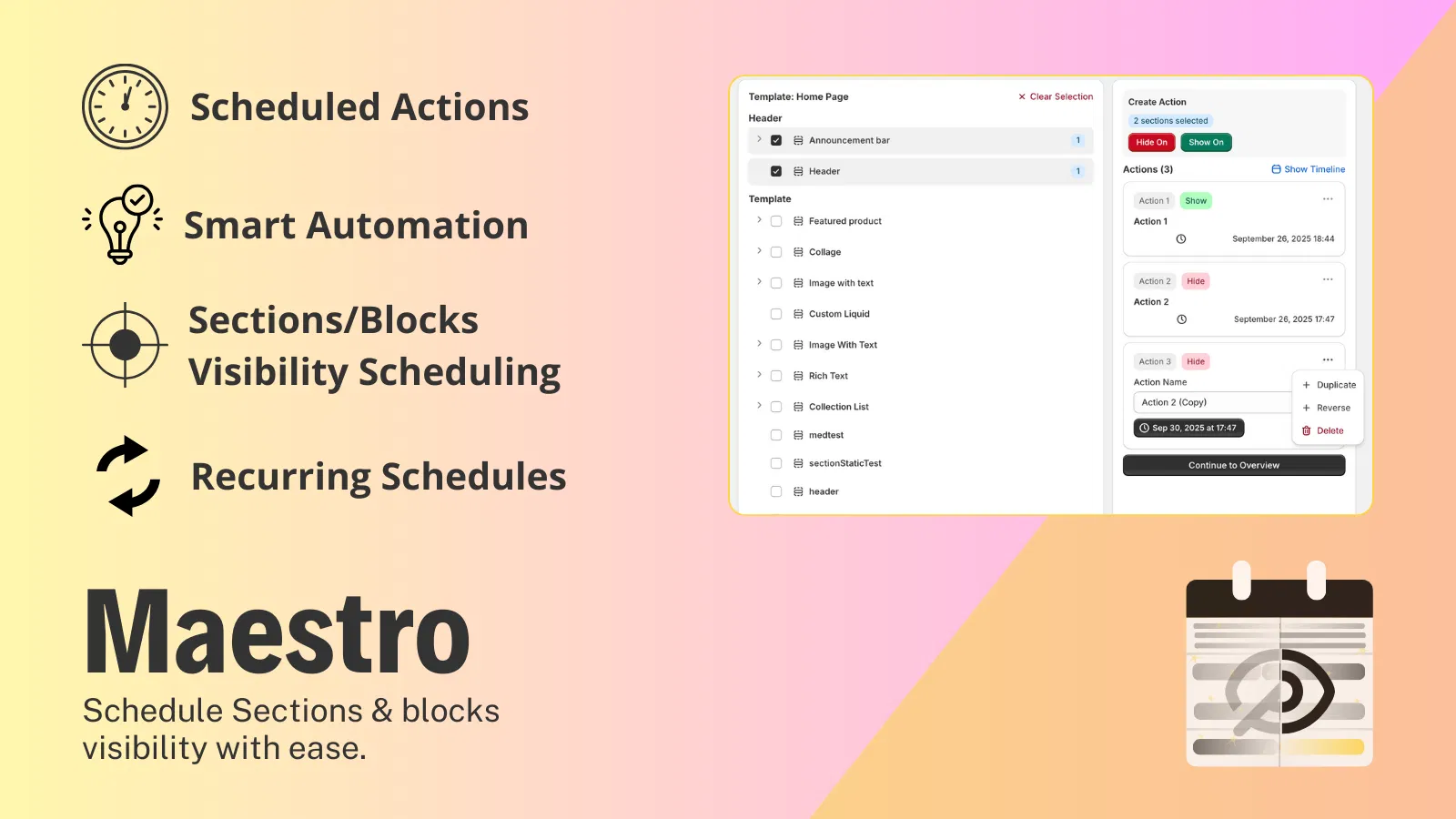
To solve these challenges, we developed the Maestro Theme Scheduler. This app is designed specifically for merchants who need granular control over when and how their themes change. Unlike basic tools, Maestro allows you to schedule not just the theme itself, but specific sections and blocks within those themes.
Key Benefits of Automating with Maestro
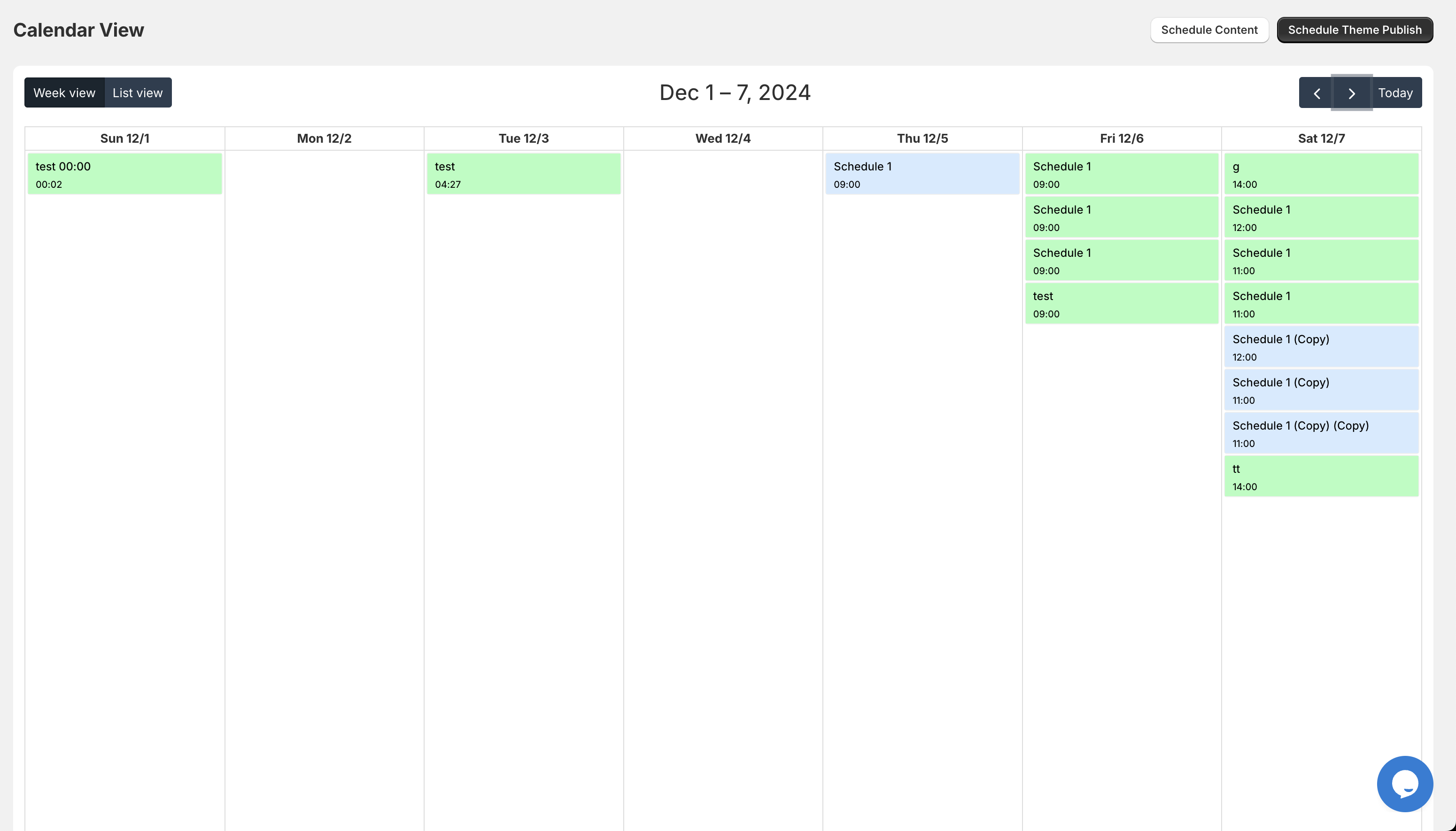
- Full Theme Publishing: Schedule a completely different theme to go live at a specific time and revert back to your original theme once the sale ends.
- Granular Visibility Control: Automate the appearance of specific sections, such as hero banners, countdown timers, or promotional announcement bars.
- Recurring Schedules: Set up weekly sales or weekend-only promotions that trigger automatically every week.
- Seamless Integration: Works perfectly with custom Shopify themes, ensuring that your unique brand aesthetic is preserved during every transition.
By integrating these features, you can transform your ecommerce maintenance services from a reactive chore into a proactive strategy.
Step-by-Step: Preparing Your Store for a Flawless Flash Sale
Automating your flash sale requires a bit of preparation, but the payoff is a stress-free launch. Follow these steps to ensure your custom Shopify themes are ready for the spotlight.
Step 1: Design and Customize Your Sale Theme
Navigate to your Shopify admin and duplicate your current live theme. Rename this duplicate to something clear, such as "Flash Sale - April 2026."
- Customize the Layout: Open the theme editor and add your sale-specific sections. This might include a high-impact hero image, a countdown timer, and featured collections of discounted products.
- Check Mobile Responsiveness: Ensure that all new elements look perfect on mobile devices. A significant portion of flash sale traffic comes from social media links clicked on phones.
- Audit for Performance: Before scheduling, consider performing an optimization audit to ensure the new theme does not slow down your site.
Step 2: Configure Maestro Theme Scheduler
Once your theme is ready, open the Maestro app to set your timeline.
- Select the Theme: Choose the "Flash Sale - April 2026" theme from the dropdown menu.
- Set the Start Time: Input the exact date and time you want the sale to begin.
- Set the End Time: Input the time when the sale should conclude. Maestro will automatically republish your previous theme at this moment.

Step 3: Automate Section and Block Visibility
Sometimes, you do not want to change the entire theme. You might just want to show a "Final Hours" banner or hide a "Sold Out" section.
- Navigate to Section Visibility: Use Maestro to select specific sections within your live theme.
- Apply Scheduling: Tell the app to show the "Discount Banner" block only during the last four hours of your sale.
- Save and Confirm: Review your schedule in the Maestro dashboard to ensure there are no overlapping conflicts.
Advanced Strategies for Shopify Plus Development
For merchants on Shopify Plus, the requirements are often more complex. High-volume stores require robust automation that can handle massive traffic spikes without flickering or failing. When we handle shopify plus development, we often combine Maestro’s flexibility with other enterprise-level tools.
Managing Seasonal Promotions
Seasonal events like Black Friday require a multi-phase approach. You might have a "Early Access" phase, a "Main Event" phase, and a "Last Chance" phase.
- Phase 1: Teaser Content: Schedule a custom section on your homepage that includes a "Notify Me" sign-up form three days before the sale.
- Phase 2: The Launch: Automate the switch to your full sale theme at midnight.
- Phase 3: The Wrap-Up: Schedule a switch to a "Sale Extended" theme for the following Monday.
Coordinating Multi-Template Updates
Maestro supports multi-schedule across different templates. This means you can update the product page layout for 50 specific items while simultaneously changing the homepage banner. This level of coordination is vital for maintaining brand consistency across the entire customer journey.

Why Automation is a Vital Step for Growth
Many merchants hesitate to automate because they fear losing control. However, the opposite is true. Automation gives you more control because it allows you to review and test your changes in a staging environment long before they go live.
When you use the Maestro Theme Scheduler, you are not just saving time; you are protecting your brand reputation. A flawless transition from a regular storefront to a high-energy flash sale theme signals to your customers that your business is professional, reliable, and ready to handle their orders.
Moreover, automation frees up your development team. Instead of performing repetitive ecommerce maintenance services like manual theme switching, your developers can focus on building new features, improving site speed, or enhancing the checkout experience.
Best Practices for Scheduled Theme Publishing
To get the most out of your automated workflows, keep these best practices in mind:
- Always Test the End-State: Ensure you have scheduled the "Revert" action. You do not want your sale theme to stay live after your inventory is depleted.
- Use Clear Naming Conventions: Label your themes and schedules clearly so that any team member can understand what is happening at a glance.
- Monitor Live Transitions: Even with automation, it is a good idea to check your site five minutes after a major transition to ensure everything looks exactly as intended.
- Sync with Marketing: Ensure your email marketing and SMS campaigns are timed to go out 5-10 minutes after the theme change is scheduled to trigger. This provides a small buffer for the site to update.
Final Thoughts on Storefront Automation
Automating your custom Shopify themes for flash sales is no longer a luxury reserved for the biggest brands. With tools like Maestro Theme Scheduler, any merchant can execute complex, multi-phase promotions with the precision of a global retailer.
By shifting from manual updates to automated scheduling, you eliminate the risk of midnight errors and ensure a seamless experience for your customers. This proactive step allows you to focus on what really matters: scaling your business and delivering value to your audience.
If you are ready to stop stressing over manual theme updates and start growing your store with confidence, it is time to explore the power of automated scheduling. Your sleep schedule: and your bottom line: will thank you.
Are you looking to optimize your store further? Explore our Shopify blog for more expert tips on enhancing your ecommerce presence, or contact XCO Agency today to learn how our ecommerce maintenance services can support your next big launch.