
As a Shopify expert, I often work with high-growth merchants who find themselves stuck in a cycle of manual, late-night site updates. Whether it is launching a seasonal sale at midnight or switching back to a standard homepage after a weekend flash promotion, the process is often stressful and prone to human error. Merchants seeking to scale their operations quickly realize that manual theme management is not sustainable.
In the fast-paced world of digital commerce, timing is everything. A delay of even a few minutes in a Black Friday launch can result in thousands of dollars in lost revenue. This is why automation is no longer a luxury but a necessity for modern brands. By leveraging tools like the Maestro Theme Scheduler, you can transition from reactive site management to a proactive, "set it and forget it" strategy.
Automating your custom Shopify themes offers several key advantages:
- Eliminate human error - Reduce the risk of broken layouts or missing banners caused by rushed, manual edits during high-pressure launches.
- Reclaim your time - Stop staying up until midnight to hit the "publish" button; let the automation handle the heavy lifting while you focus on strategy.
- Enhance customer experience - Ensure that promotional content is perfectly synced across all time zones, providing a consistent brand message.
- Scale effortlessly - Manage multiple content campaigns simultaneously without increasing your team's workload.
The Problem With Traditional Theme Management
Many merchants rely on ecommerce maintenance services to handle their site updates. While professional support is vital, the traditional workflow often involves a lot of back-and-forth communication and manual execution. On a standard Shopify setup, changing a theme requires a staff member to be physically present at the exact moment of the switch.
This manual approach creates a bottleneck. If you want to change a specific section of your homepage: such as an announcement bar or a hero image: for a 24-hour flash sale, you have to be there at the start and the end of the sale. For Shopify Plus development teams, this inefficiency is amplified when managing multiple stores across different regions. The need for a more granular, automated solution led to the creation of Maestro.
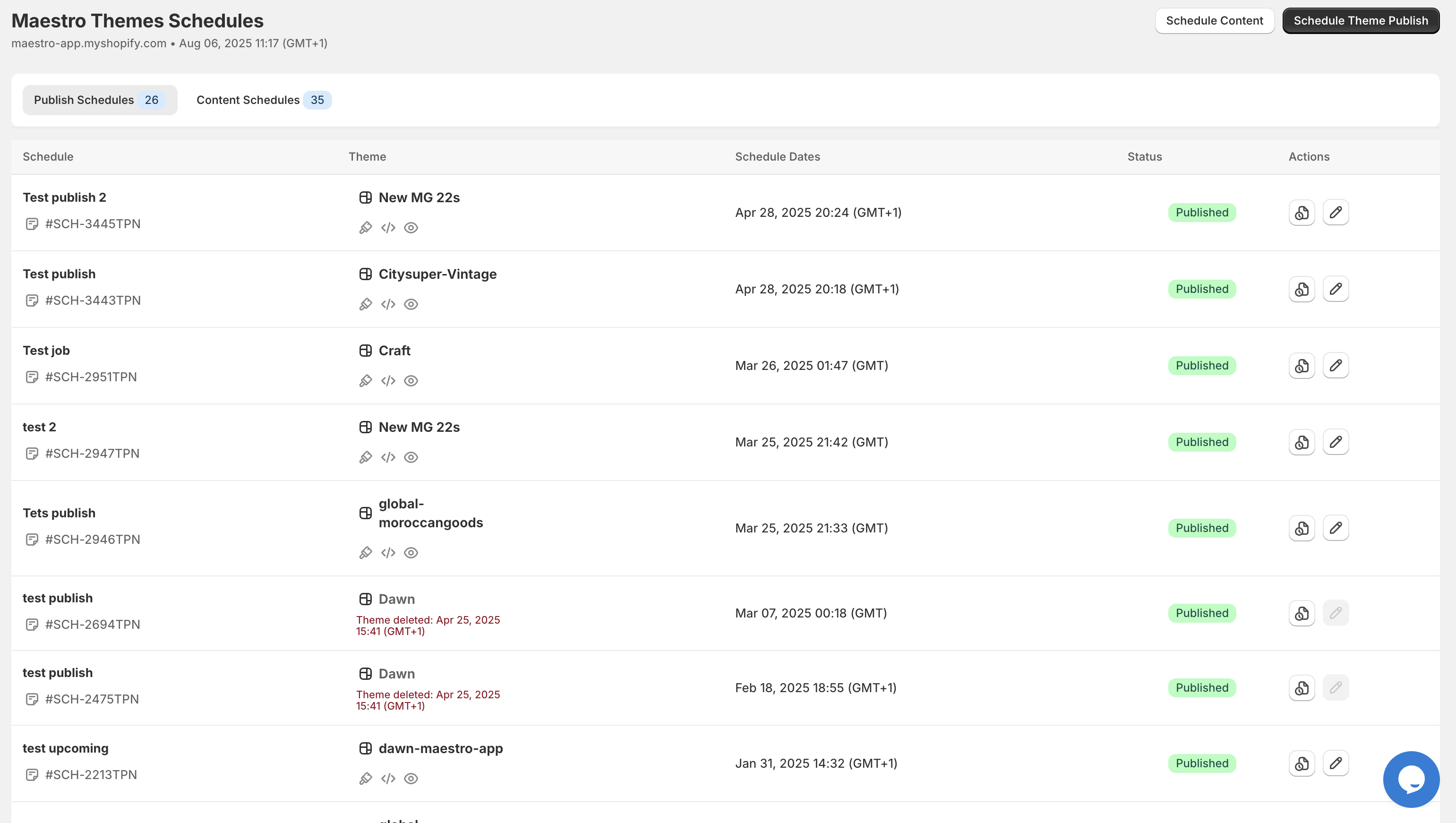
How Maestro Simplifies Theme Automation
Maestro is designed to act as the "conductor" of your Shopify storefront. Unlike standard tools that only allow you to switch between entire themes, Maestro provides fine-grained control over specific sections and blocks. This means you can keep your core theme live while scheduling only the promotional elements you need.
Here is how you can automate your theme changes in just five minutes:
Step 1: Install and Initialize Maestro
Navigate to the Shopify App Store and install the Maestro Theme Scheduler. Once installed, the app will sync with your existing theme library. You do not need to perform any complex technical setup or code injection.
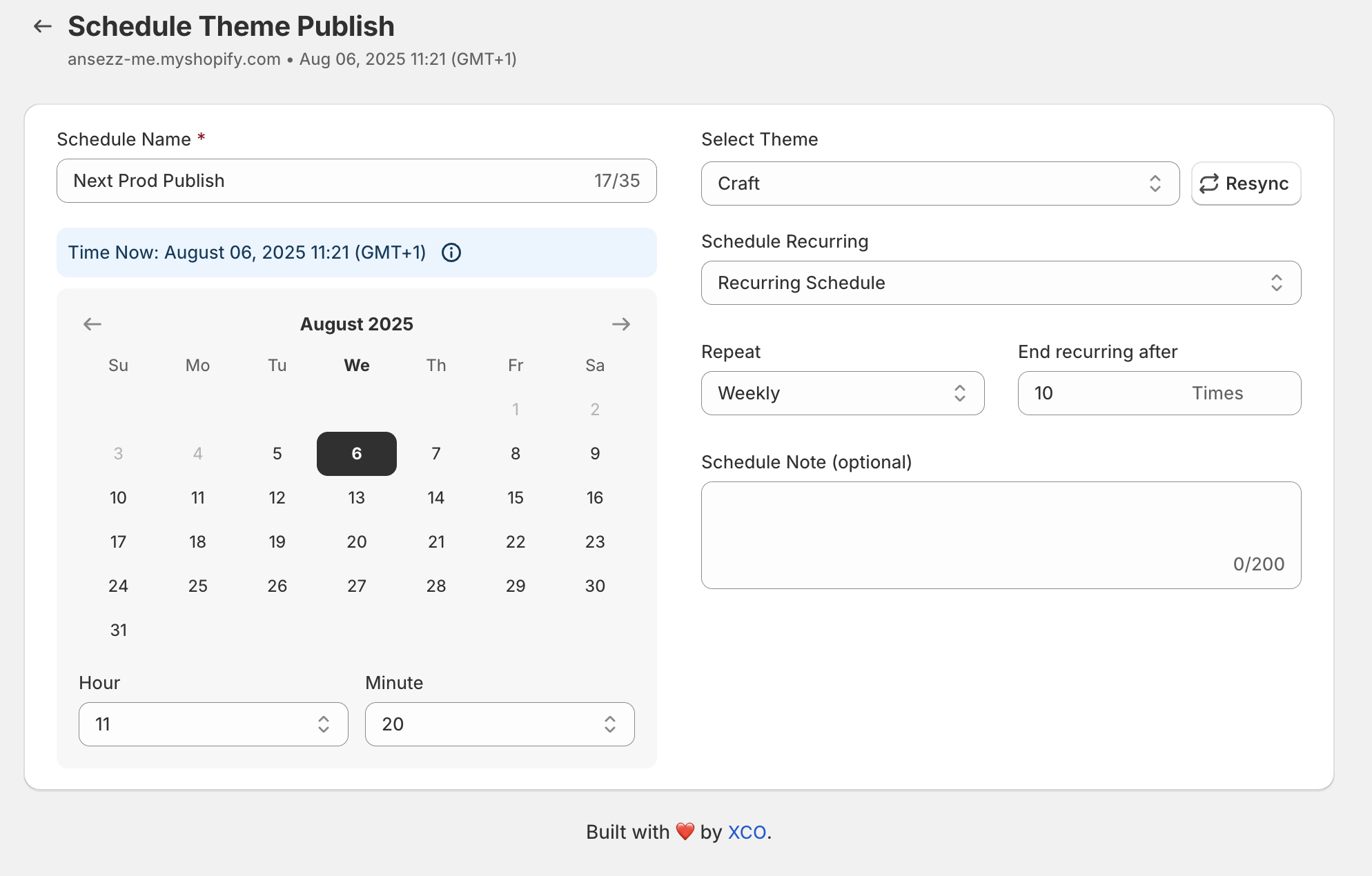
Step 2: Create Your New Schedule
Inside the Maestro dashboard, click on the "Create Schedule" button. You will be prompted to name your schedule: use something descriptive like "Summer Flash Sale Banner" or "Black Friday Theme Launch."
Step 3: Select Your Target Content
You have two primary options for automation:
- Full Theme Publish: Select a prepared theme from your library to go live at a specific time.
- Section/Block Visibility: Choose specific sections or blocks within your live theme to show or hide. This is ideal for announcement bars or promotional countdowns.
Step 4: Set the Timing and Recurrence
Select the exact date and time for the automation to trigger. Maestro is timezone-aware, so you can align your updates with your target audience's local time. If you run weekly promotions, you can set the schedule to recur automatically.
Step 5: Review and Activate
Verify your settings in the summary panel. Once you are satisfied, click "Save and Activate." Maestro will handle the rest, ensuring your site updates exactly as planned.
Strategic Use Cases for Shopify Merchants
Automation is most powerful when used strategically to drive revenue and engagement. For Shopify Plus development projects, the ability to plan months in advance is a game-changer for marketing teams.
Managing Seasonal Promotions
During peak seasons like Black Friday or the winter holidays, your store's visual identity needs to change frequently. With Maestro, you can build your holiday themes in October and schedule them to go live in stages. You can schedule the "Early Bird" sale theme to launch on Monday, the "Main Event" theme on Friday, and a "Last Chance" theme for Cyber Monday.
Automating Section Visibility
You do not always need to change your entire theme. Often, a simple change to the announcement bar or the addition of a promotional block on the collection page is enough. Maestro allows you to automate these specific elements. For example, you can schedule a "Free Shipping Weekend" block to appear every Friday at 5 PM and disappear on Sunday at midnight.
Multi-Region Coordination
If you operate globally, managing site updates across different time zones is a logistical challenge. Maestro allows you to create separate schedules for different store instances or localized themes. This ensures that your customers in London see the promotion at the same local time as your customers in New York, without requiring a global team to work around the clock.
Why Automation is Vital for Shopify Plus Success
For enterprise-level merchants, ecommerce maintenance services must include robust automation. The complexity of a Shopify Plus store: with its high volume of traffic and intricate backend integrations: means that every manual change carries a higher risk.
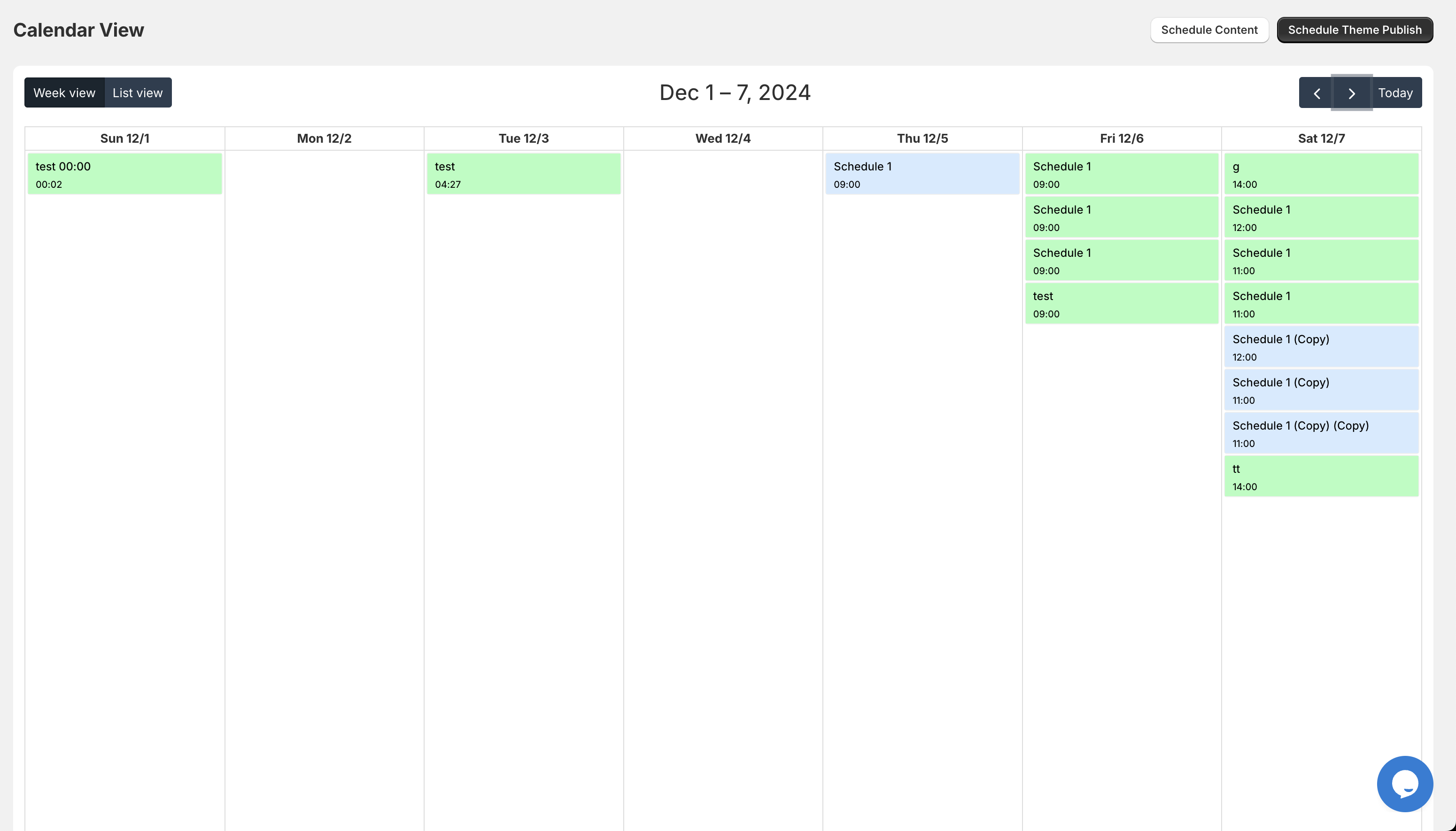
By automating theme changes, you significantly reduce the potential for "site-down" events or layout breaks that can occur during manual theme swaps. Maestro provides a centralized dashboard where your entire team can see what is scheduled, reducing communication gaps and ensuring everyone is aligned on the promotional calendar.
Furthermore, Maestro's roadmap includes advanced features like multi-schedule support across templates and publish timelines, specifically designed to support the sophisticated needs of Plus merchants.

Maximizing Results with Professional Guidance
While Maestro makes the technical execution of theme changes simple, the strategy behind those changes is what drives growth. At XCO Agency, we specialize in helping brands optimize their Shopify experience through custom development and strategic marketing.
Our team can help you design custom Shopify themes that are optimized for conversion and then show you how to use Maestro to automate those designs for maximum impact. Whether you are looking for a complete store migration or ongoing ecommerce maintenance services, we provide the expertise needed to navigate the digital landscape effectively.
Final Steps Toward a More Efficient Store
Automating your theme changes is a vital step toward professionalizing your e-commerce operations. By taking five minutes today to set up a schedule in Maestro, you save hours of manual work in the future.
Here are the proactive steps you should take now:
- Review your marketing calendar for the next quarter.
- Identify key dates where your site's appearance needs to change.
- Prepare your theme versions or promotional blocks in advance.
- Use Maestro to schedule these changes so you can focus on other growth-driving tasks.
The "set it and forget it" nature of Maestro ensures that your store remains dynamic, relevant, and profitable without the stress of manual management. If you are ready to power-up your Shopify store with advanced automation and professional development, contact us at XCO Agency to learn more about how we can support your journey.