
Meta title: Advanced BFCM Theme Scheduling with Maestro Theme Scheduler
Meta description: Plan, stage, and automate your BFCM storefront with Maestro Theme Scheduler. Learn how to schedule Shopify themes, content, deal rotations, and post-sale rollbacks.
As a Shopify expert, I often work with merchants seeking a faster, safer way to manage their Black Friday Cyber Monday storefront. They want a high-converting sale experience, but they do not want someone sitting in Shopify admin at midnight waiting to publish a theme, swap a banner, or remove an expired countdown.
For BFCM 2026, Black Friday falls on Friday, November 27, and Cyber Monday is Monday, November 30. That gives merchants a defined window to plan, stage, and automate every major storefront change.
With Maestro Theme Scheduler, you can prepare custom Shopify themes and storefront content in advance, schedule precise publishing times, automate daily deal rotations, and plan the post-sale teardown before the first discount goes live.
The result is a storefront that changes on cue while your team focuses on customers, operations, and revenue.
Why advanced BFCM theme scheduling matters
A BFCM campaign is rarely one simple theme swap. It is a chain of coordinated changes across your storefront.
A reliable scheduling workflow helps you:
-
Launch campaigns at the exact intended time
- Coordinate midnight drops, early-access windows, and regional campaigns.
-
Reduce manual publishing errors
- Avoid rushed edits to the live theme during peak traffic.
-
Create a more consistent customer journey
- Align hero banners, collections, messaging, countdowns, and promotional sections.
-
Protect your normal storefront
- Keep the standard theme untouched and ready for rollback.
-
Automate the post-sale experience
- Remove expired messaging without a 2am cleanup operation.
-
Support recurring promotions
- Rotate daily deals without rebuilding the homepage every morning.
The key principle is simple: build early, stage carefully, schedule deliberately, and validate every transition.
Step 1: Build your BFCM theme system before launch
Do not begin BFCM week by editing your live theme. Start by creating a small theme system for the entire campaign lifecycle.
Create three custom Shopify themes
Build and name your themes clearly so everyone on your team understands their purpose:
-
BFCM Teaser Theme
- Introduce the upcoming event.
- Promote email or SMS sign-ups.
- Display early-access messaging.
- Add a countdown to Black Friday.
- Keep the storefront visually aligned with your regular brand experience.
-
BFCM Sale Theme
- Lead with the primary offer.
- Feature sale collections and best sellers.
- Highlight shipping deadlines, stock urgency, and promotional terms.
- Use focused calls to action across the homepage and collection templates.
- Add campaign-specific navigation where useful.
-
Post-BFCM or Normal Theme
- Restore your evergreen messaging.
- Remove sale badges and expired urgency.
- Return to standard collection ordering and promotional modules.
- Retain any useful merchandising improvements discovered during the campaign.
Store these as unpublished custom themes in Shopify. This creates a controlled environment where your team can review changes without disturbing the live storefront.
For more complex builds, involve your Shopify Plus development team early. A carefully structured theme makes it easier to reuse sections, control blocks, and schedule content without creating unnecessary duplication.

Use a consistent naming convention
Make themes easy to identify in a busy Shopify admin:
2026 - Live - Evergreen2026 - BFCM - Teaser2026 - BFCM - Sale2026 - BFCM - Post-Sale2026 - BFCM - Rollback
Include the year, campaign stage, and intended use. This small governance habit can prevent the classic “Which theme is the right one?” conversation five minutes before launch.
Step 2: Schedule exact publish times and account for time zones
Once your themes are ready, schedule each transition in Maestro Theme Scheduler.
Here are simple steps:
- Select the theme or storefront content you want to schedule.
- Choose the publish date and time.
- Confirm the applicable store timezone.
- Add an internal description for the campaign stage.
- Review the schedule with marketing, operations, and customer support.
- Save the schedule and record it in your BFCM runbook.
Time zone planning deserves special attention. A campaign that launches at midnight in New York does not launch at midnight in London, Casablanca, or Tokyo.
Before scheduling, document:
- The store’s configured timezone.
- The timezone used in your marketing calendar.
- The timezone used by your countdown timer.
- Any market-specific launch promises.
- The exact start and end time communicated to customers.
If your campaign serves multiple markets, decide whether the storefront should change globally or whether selected content should be tailored by market. Multi-timezone management is valuable, but it still requires a clear operating plan. A single global theme publication may not create a local midnight experience for every customer.
Schedule a test transition before BFCM. Use a low-risk banner or duplicate theme to confirm that the timing behaves as expected. Shopify will guide you through the relevant theme controls, while Maestro helps you manage the timing and storefront changes in a single workflow.
Step 3: Stage every storefront element in advance
A successful BFCM storefront should not rely on one homepage banner. Build the full customer experience before launch.
Hero banners and promotional sections
Schedule:
- Desktop and mobile hero images.
- Sale-specific calls to action.
- Promotional tiles for priority collections.
- Product badges and campaign labels.
- Slideshow rotations for different offers.
Use separate mobile assets where needed. A beautiful desktop banner can become unreadable on a small screen, especially when discount copy is placed over product photography.
Announcement bars
Prepare announcement bars for each stage:
- “BFCM starts soon”
- “Black Friday is live”
- “Free shipping through Cyber Monday”
- “Final hours”
- “Sale ended, discover our everyday collection”
Schedule the appearance and removal of each message. Avoid leaving “final hours” messaging active after the sale has ended. Customers notice, and not in the way you want.
Countdown timers
Set countdown timers against one documented source of truth. Confirm:
- The timer ends at the correct moment.
- It behaves correctly on mobile.
- It does not continue displaying zero after the promotion.
- It uses the intended timezone.
- It disappears or changes after the campaign ends.
Collections and merchandising
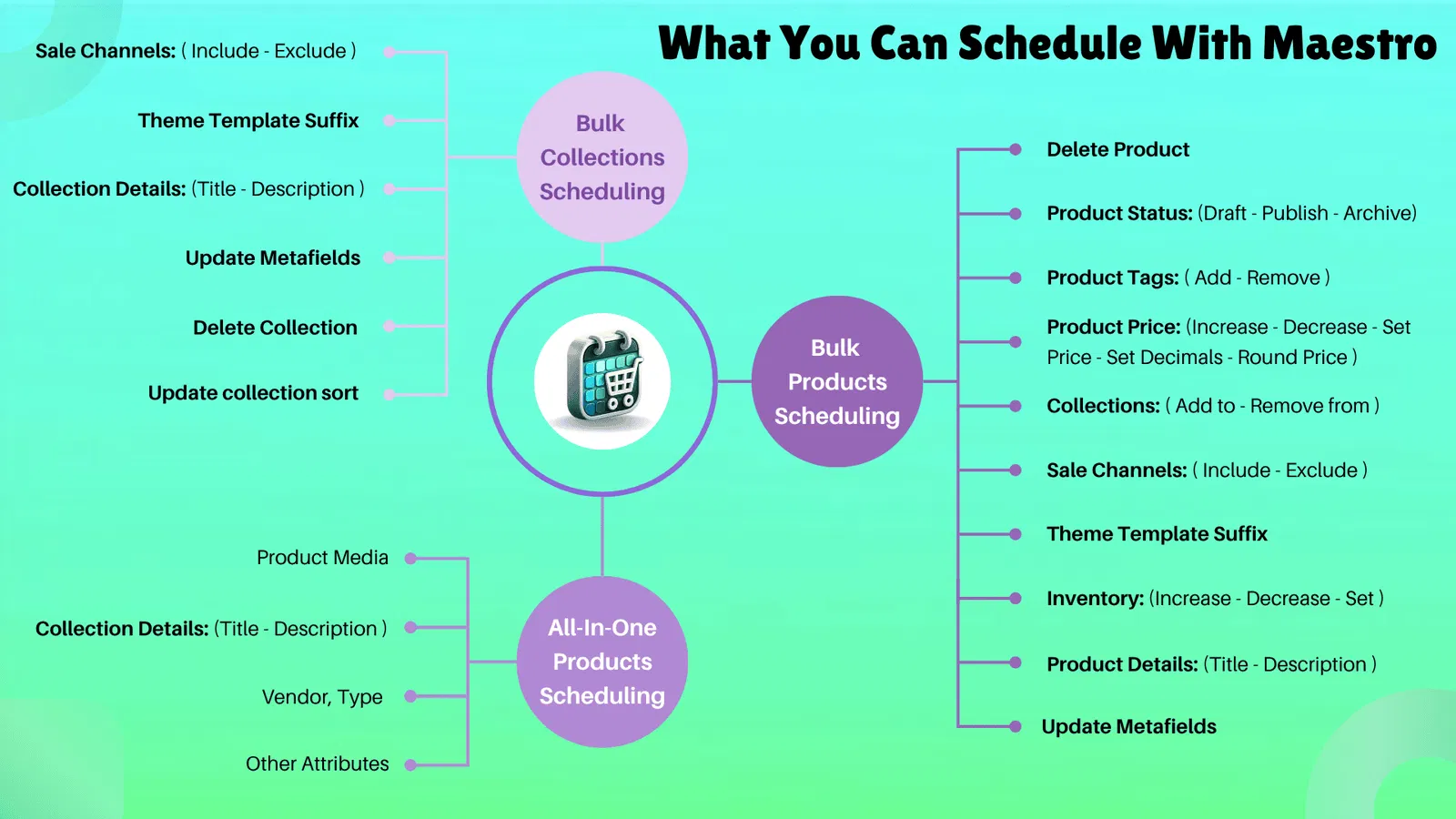
Prepare your sale collections before the campaign begins. If your workflow includes scheduled product or collection updates, coordinate them with the theme schedule.
You may need to stage:
- BFCM collection visibility.
- Product tags and promotional badges.
- Collection sorting.
- Product pricing or compare-at pricing.
- Product media.
- Sale channel availability.
- Inventory messaging.
Maestro’s broader scheduling ecosystem can be useful here, especially when theme updates need to align with product and collection changes.
Checkout-adjacent content
The theme does not control every checkout experience, but the customer journey around checkout still matters. Stage content that supports conversion near the buying decision:
- Shipping cut-off information.
- Returns and exchange reassurance.
- Financing or payment messaging.
- Cart drawer promotions.
- Free-shipping thresholds.
- Gift-with-purchase reminders.
- “Almost gone” inventory communication.
Coordinate these elements with your discounts, Shopify Plus checkout configuration, and customer support policies. Never publish a promise on the storefront that operations cannot fulfill.
Step 4: Schedule recurring daily deal rotations
Many merchants extend BFCM beyond one offer. A typical campaign might include:
- Friday: Sitewide Black Friday offer.
- Saturday: Category-specific promotion.
- Sunday: Bundle or gift-focused offer.
- Monday: Cyber Monday final offer.
Instead of manually replacing the homepage every morning, create recurring schedules for the daily deal components.
For each rotation:
- Create the promotional section or block.
- Add the correct imagery and offer copy.
- Assign the relevant collection or landing page.
- Set the start and end time.
- Schedule the next promotion to appear.
- Preview the transition on desktop and mobile.
Recurring schedules are especially useful for brands running hourly drops, rotating featured products, or different promotions for separate customer segments.
Keep the number of simultaneous schedules manageable. Your automation should create clarity, not a digital cupboard full of mystery switches.
Step 5: Automate the post-BFCM teardown
The end of a campaign is just as important as the launch.
Schedule the post-sale teardown before BFCM begins. Plan changes such as:
- Publish the normal or post-sale theme.
- Remove sale announcement bars.
- Hide countdown timers.
- Replace BFCM hero banners.
- Disable expired promotional sections.
- Restore evergreen navigation.
- Remove sale-only collection links.
- Return standard merchandising and messaging.
For BFCM 2026, you might schedule the sale experience to end late on Monday, November 30, then publish your post-sale state immediately afterward or at a carefully chosen time.
This prevents the “sale ended, but the homepage forgot” problem. More importantly, it eliminates manual overnight work and gives your team a predictable recovery path.

Maestro Theme Scheduler compared with Launchpad and Rollouts
Shopify Plus merchants have access to native tools that can support campaign operations. The right choice depends on the scope of your workflow.
| Capability | Maestro Theme Scheduler | Shopify Plus Launchpad | Shopify Rollouts |
|---|---|---|---|
| Theme publishing | Yes | Yes | Yes |
| Section and block scheduling | Yes | More event-oriented | Focused on rollout changes |
| Recurring content schedules | Yes | Less focused on recurring content rotations | Not its primary use |
| BFCM event orchestration | Theme and content layer | Broader campaign automation | Theme and storefront rollout layer |
| Product, discount, and script coordination | Often paired with other tools | Strong event-level capabilities | Limited compared with Launchpad |
| Experiments and A/B testing | Not its core purpose | Not its core purpose | Supports experiments |
| Availability | App-based | Shopify Plus | Basic and above, with advanced market capabilities on eligible plans |
Launchpad is designed for broader sales-event automation on Shopify Plus. It can coordinate campaign themes with discounts, product visibility, scripts, inventory, and other event changes. See Shopify’s Launchpad options documentation for current capabilities and limitations.
Rollouts is useful for scheduling or testing storefront changes, including theme, checkout, and customer account experiences. It can be a strong choice for experiments or market-specific rollout strategies. Review the Shopify Rollouts documentation for the latest details.
Maestro Theme Scheduler is particularly useful when your priority is granular theme automation: sections, blocks, banners, content updates, recurring schedules, and precise storefront transitions. It can complement a broader Shopify Plus workflow or provide a focused scheduling layer for merchants who need more control over theme content.
Avoid overlapping tools without assigning ownership. Choose one system as the source of truth for each change. For example, use Launchpad for the main event orchestration and Maestro for granular theme content only, or use Maestro as the primary theme scheduler when your campaign scope is storefront-focused.
Step 6: Add governance, history, and rollback strategies
Automation is powerful, but reliable automation needs governance.
Use theme publish history to review:
- What changed.
- When it changed.
- Which theme was published.
- Which team member or workflow initiated the change.
- Whether the storefront returned to the intended state.
Before launch, define a rollback strategy:
- Keep the last known-good live theme available.
- Record its theme name and identifier in your runbook.
- Create a rollback schedule or manual fallback procedure.
- Assign one accountable owner for emergency decisions.
- Test the rollback path before BFCM.
Also complete a final checklist covering:
- Mobile and desktop previews.
- Collection links.
- Discount messaging.
- Countdown behavior.
- Page speed.
- Analytics and tracking.
- Inventory visibility.
- Shipping and returns information.
- Customer support escalation.
- Timezone accuracy.

Build a calmer BFCM operation with Maestro
BFCM is a vital step in the retail calendar, but it should not require a high-risk live edit marathon. By building custom Shopify themes in advance, staging every storefront element, scheduling time-zone-aware changes, rotating daily deals, and automating the post-sale teardown, you create a more reliable Shopify automation workflow.
Maestro Theme Scheduler helps turn your BFCM storefront into a planned sequence instead of a series of urgent tasks. That is the proactive step that protects your customer experience and your team’s sleep schedule.
Try Maestro Theme Scheduler on the Shopify App Store, or book a consultation with XCO Agency to plan a scalable BFCM workflow for your Shopify or Shopify Plus store.