
As a Shopify expert, I often work with high-growth merchants who find themselves tethered to their laptops at midnight, waiting to manually publish a Black Friday banner or swap out a homepage hero image. This manual approach to ecommerce maintenance services is not only exhausting but also prone to human error. When you are managing a complex storefront, the "set it and forget it" philosophy is not just a luxury: it is a necessity for scalability.
E-commerce managers are seeking ways to regain their time while maintaining a dynamic, high-converting storefront. Whether you are running a boutique brand or a Shopify Plus enterprise, automating your theme’s visibility ensures that your promotions are always perfectly timed. By leveraging the Maestro Theme Scheduler, you can transform your workflow from reactive to proactive.
Why Automate Your Storefront Visibility?
Before we dive into the specific hacks, it is vital to understand the "why" behind automation. Manual updates often lead to missed opportunities, such as:
- Delayed campaign starts that cost you early-bird sales.
- Expired content remaining on the site, which confuses customers and hurts brand credibility.
- Operational burnout from coordinating multi-timezone launches manually.
- Technical glitches caused by rushed, last-minute theme edits in the Shopify admin.
Here are 7 powerful Maestro visibility hacks that will streamline your operations and keep your storefront fresh without the late-night shifts.
1. The Midnight Flash Sale "Ghost" Section
One of the most effective ways to drive urgency is through flash sales. However, setting these up usually requires a developer to toggle code or a manager to click "save" at exactly 12:00 AM.
How to implement this:
- Navigate to your Shopify Theme Editor and create a dedicated "Flash Sale" section with a countdown timer and featured products.
- Keep the section hidden by default.
- Use the Maestro Theme Scheduler to set a specific visibility start time for that section.
- Schedule an end time so the section disappears automatically when the sale concludes.
This allows you to prepare your custom Shopify themes days in advance, ensuring the "ghost" section only appears when the clock strikes midnight.
2. Automate Seasonal Theme Publishing
For major holidays like Black Friday Cyber Monday (BFCM) or Christmas, a simple banner change often is not enough. You might want a completely different theme aesthetic: perhaps one optimized for high-volume traffic or featuring a festive design.
The Maestro advantage:
- Select your prepared seasonal theme from your Shopify library.
- Schedule a "Theme Publish" event for the start of your holiday period.
- Schedule a second event to revert to your standard brand theme once the holiday ends.
- Monitor the transition through the app's history log to ensure seamless deployment.
This is a proactive step that ensures your Shopify Plus development efforts are displayed exactly when they have the most impact.

3. Recurring Weekly "Deal of the Day"
Consistency is key to building customer habits. If your audience knows that a new deal drops every Tuesday at 10:00 AM, they will return to your site like clockwork.
Steps to automate your recurring content:
- Design a "Weekly Special" block within your homepage section.
- In Maestro, select the "Recurring Schedule" option.
- Set the frequency to "Weekly" and choose your preferred day and time.
- Ensure you update the content within the block periodically; the scheduler handles the visibility.
This "power-up" for your storefront keeps the experience dynamic for returning visitors without requiring constant manual oversight.
4. Multi-Timezone Launch Coordination
For global brands, a "9:00 AM launch" happens at different times across the world. Manually managing this for various markets can be a logistical nightmare.
Optimize your global strategy:
- Identify the peak shopping hours for your primary regions (e.g., EST for North America, GMT for Europe).
- Create region-specific sections or banners using Shopify Markets.
- Use Maestro to schedule visibility changes based on specific time zones.
- This ensures that a UK customer sees a "Morning Coffee" promo while a US customer still sees the "Late Night" banner.
By automating this, you provide a localized experience that can significantly boost conversion rates in international markets.
5. The "Cleanup Crew" for Announcement Bars
Announcement bars are often the most neglected part of a Shopify store. How many times have you seen a "Free Shipping until Sunday" message still active on a Tuesday?
The simple cleanup hack:
- When you create a promotional announcement bar, immediately open Maestro.
- Create a "Hide Block" schedule for the exact minute the promotion ends.
- Check the "Recurring" box if this is a standard weekend promotion.
- Verify that your default announcement bar (e.g., "Standard Free Shipping over $50") is scheduled to reappear.
This ensures your site never looks dated or neglected, maintaining a professional standard of ecommerce maintenance services.
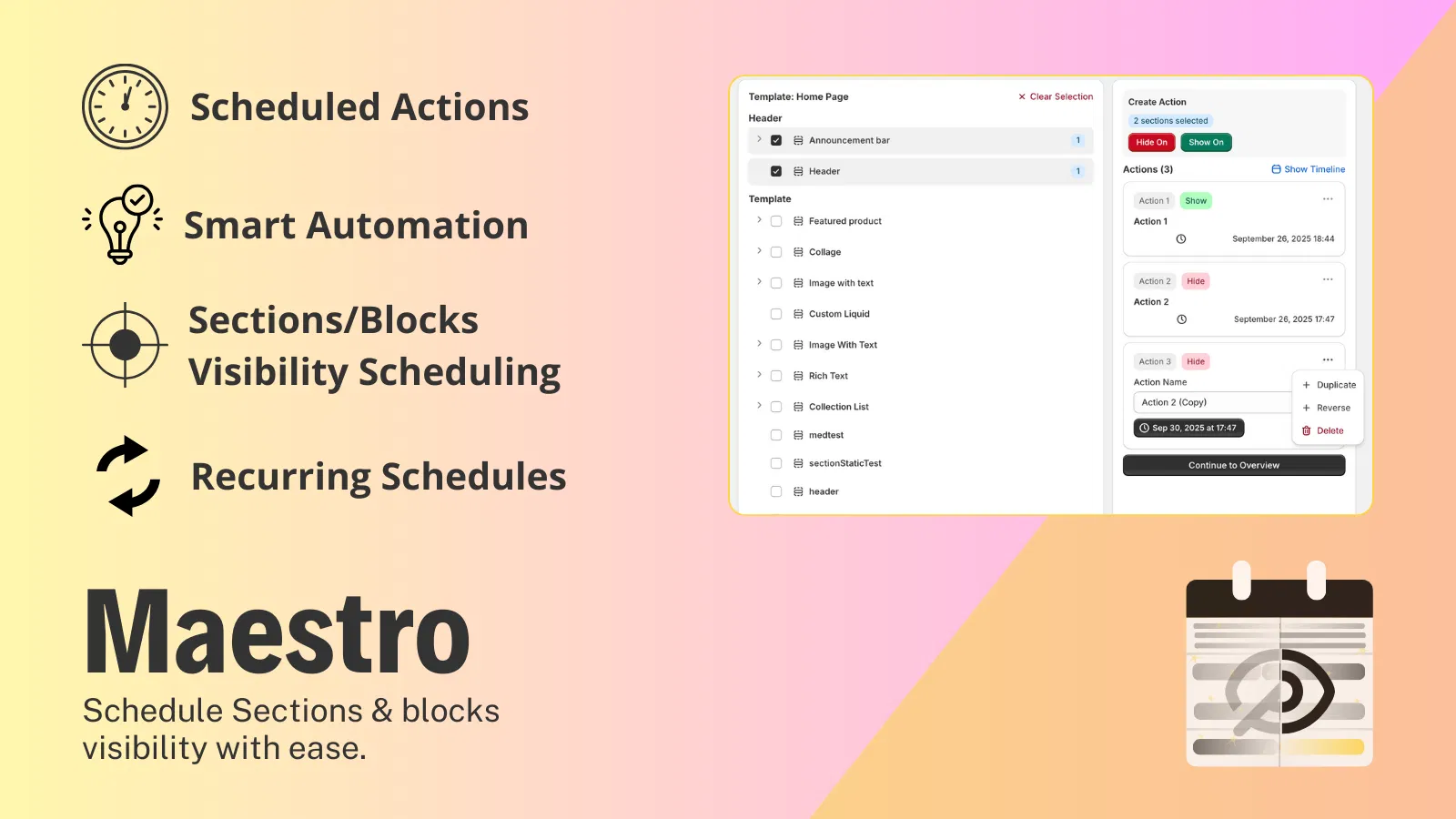
6. Pre-Loading Teaser Campaigns
Before a major product drop, you want to build hype. A common tactic is showing a "Coming Soon" teaser that eventually flips to a "Shop Now" section.
Execute the teaser-to-launch flow:
- Step 1: Create Section A (Teaser) and Section B (Full Launch).
- Step 2: Schedule Section A to be visible for the three days leading up to launch.
- Step 3: Schedule Section A to hide and Section B to show simultaneously at the launch hour.
- Step 4: Use the app's timeline view to visualize the overlap and ensure there is no "dead air" on your storefront.
This transition is vital for a smooth customer journey and prevents the need for manual theme saves during critical launch windows.
7. Dynamic Social Proof & Testimonial Rotations
Social proof is more effective when it is relevant. If you are running a sale on footwear, you want footwear reviews front and center.
Enhance your social proof:
- Group your testimonials into blocks based on product categories.
- Schedule the "Footwear Testimonials" block to show only when the "Footwear Collection" is being promoted.
- Swap these blocks automatically as your marketing focus shifts throughout the month.
- Ensure that your general testimonials block remains as a fallback when no specific category is scheduled.
This level of granular control is what separates a standard storefront from a high-performing Shopify Plus development masterpiece.
Conclusion: Reclaim Your Time with Automation
Stop letting manual updates dictate your schedule. The transition from manual "save and publish" workflows to automated visibility scheduling is a vital step for any merchant looking to scale. By implementing these 7 hacks, you not only reduce the risk of human error but also ensure your storefront remains as dynamic and responsive as your marketing strategy demands.
As we have seen, the Maestro Theme Scheduler acts as a silent partner, handling the heavy lifting of theme management so you can focus on growth. Whether it is a midnight flash sale or a global regional launch, the ability to "set it and forget it" is the ultimate competitive advantage in the fast-paced world of e-commerce.
Ready to automate your storefront? Install Maestro Theme Scheduler today and start your free trial. For brands looking for deeper theme customization or full-service management, contact our team at XCO Agency to learn how we can optimize your Shopify experience.