
As a Shopify expert, I often work with merchants who feel like they are tethered to their computers 24/7. Whether it is staying up until midnight to publish a new theme for a product launch or waking up at 5:00 AM to disable a flash sale banner, manual storefront management is a significant bottleneck. For growing brands, these manual tasks do more than just cause fatigue; they introduce the risk of human error and divert attention away from high-level growth strategies.
The goal for any serious e-commerce business should be to move toward a "set it and forget it" workflow. This means using automation to handle the repetitive, time-sensitive updates that keep your store fresh. If you are currently paying for extensive ecommerce maintenance services just to have someone click "publish" at specific times, there is a much more efficient way to operate.
Why Merchants Seek Storefront Automation
Before we dive into the technical "how-to," it is important to understand why manual changes are costing you more than just time. Merchants seeking to scale their operations usually face a specific set of challenges:
- Inconsistency in Branding: When updates are manual, it is easy to forget a specific banner on a sub-page or leave an expired discount code visible in a footer block.
- Operational Burnout: High-volume stores on Shopify Plus often have multiple promotions running simultaneously. Managing these without automation leads to team burnout.
- Missed Revenue Opportunities: If a sale starts at midnight but your team does not update the site until 9:00 AM, you have lost nine hours of peak promotional visibility.
- High Maintenance Costs: Relying on developers for simple visibility changes is an expensive way to utilize Shopify Plus development resources.
By transitioning to an automated scheduling system, you regain control over your schedule while ensuring your customer experience remains flawless.
The Maestro Theme Scheduler: Your Automation Powerhouse
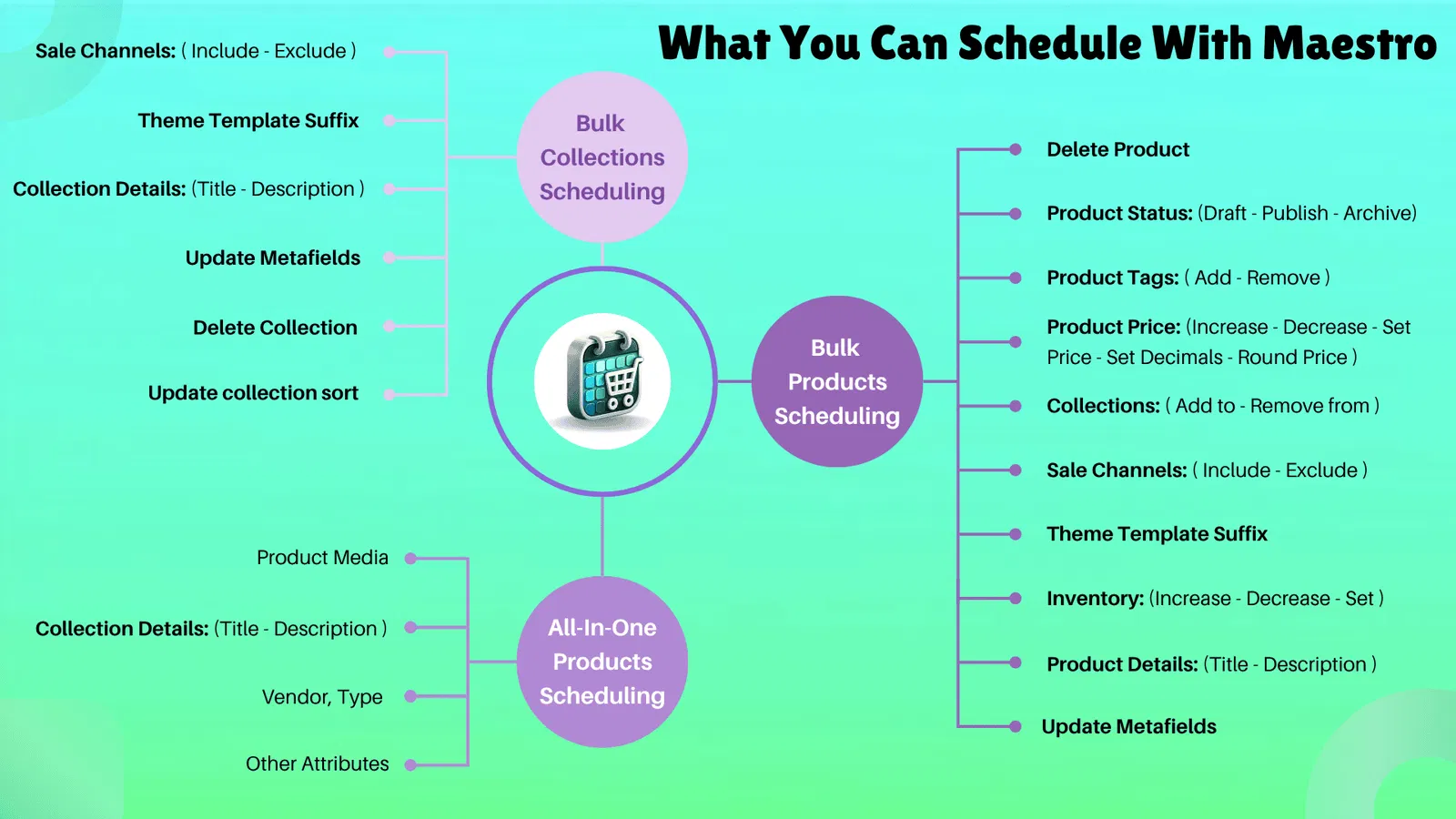
At XCO Agency, we developed the Maestro Theme Scheduler to bridge the gap between custom Shopify themes and seamless automation. While Shopify provides some native scheduling tools, many merchants find they need more granular control over specific sections and blocks within their themes.

Automating Theme Publishing
The most common use case for automation is theme publishing. Perhaps you have a custom holiday theme designed to go live on December 1st. Instead of manually switching themes, you can schedule the exact date and time for the transition.
When you schedule a theme publish, you ensure that the entire look and feel of your store changes in an instant. This is vital for maintaining brand authority during major events. It allows your design team to work ahead of schedule, preparing and testing the theme in a preview environment weeks before it needs to go live.
Precision Control with Section and Block Visibility
Standard theme publishing is great for total site overhauls, but what if you only want to change a single announcement bar or a specific promotional hero section? This is where Maestro excels.
Modern Shopify themes are built using sections and blocks. Automation allows you to:
- Schedule a "Flash Sale" section to appear only during a 4-hour window.
- Automate the visibility of specific product blocks for limited-edition releases.
- Set recurring schedules for weekly promotions, such as "Free Shipping Fridays."
This level of precision means you don't have to keep duplicating themes just to change one small piece of content. You simply tell the app when that specific piece of content should be visible to the public.
Managing High-Stakes Promotions Like Black Friday
Black Friday and Cyber Monday (BFCM) are the ultimate tests for any Shopify merchant. During these periods, the pressure to execute perfectly is immense. Using a "set it and forget it" approach during BFCM is not just a luxury; it is a necessity for sanity.
As a Shopify expert, I recommend mapping out your entire BFCM promotional calendar at least thirty days in advance. Once your Shopify design services team has finished the assets, you can load everything into the scheduler.
A Typical BFCM Automated Workflow
- Thursday 11:59 PM: The "Early Access" theme goes live for VIP customers.
- Friday 12:00 AM: The main Black Friday hero section and site-wide banners become visible.
- Sunday 11:59 PM: The Black Friday sections automatically hide.
- Monday 12:00 AM: The Cyber Monday promotional blocks and countdown timers appear.
By automating this sequence, your team can spend the actual holiday weekend monitoring sales data and managing customer support rather than fumbling with theme settings in the Shopify admin.

Reducing Ecommerce Maintenance Services Costs
One of the hidden benefits of storefront automation is the significant reduction in ongoing maintenance costs. Many brands find themselves stuck in a cycle of hiring developers for minor updates. When you empower your marketing team with tools like Maestro, you reduce the reliance on technical staff for non-technical tasks.
Shopify Plus development is most valuable when it is focused on building new features, optimizing the checkout experience, or handling Shopify integrations. Using a developer's time to toggle a "Sale" banner is a poor allocation of resources. Automation democratizes the management of the storefront, allowing the people in charge of the creative and promotional strategy to execute their vision directly.
Step-by-Step: Setting Up Your First Scheduled Action
Implementing an automated workflow is simpler than most merchants realize. Here is how you can begin moving toward a "set it and forget it" model today.
Step 1: Audit Your Recurring Tasks
Identify which changes you make to your store on a weekly or monthly basis. Do you update a "New Arrivals" section every Tuesday? Do you change your shipping notice frequently? List these out.
Step 2: Prepare Your Content in the Theme Editor
Before scheduling, ensure the sections or themes you want to publish are fully designed and tested. Use Shopify’s preview mode to check for mobile responsiveness and link accuracy.
Step 3: Configure the Schedule in Maestro
Navigate to the Maestro Theme Scheduler app within your Shopify admin. Select the action you wish to perform:
- Theme Publish: Choose the theme and the target date/time.
- Section Visibility: Select the specific section and set the start and end parameters.
Step 4: Set the Timezone
Always double-check that your scheduling app is synced with your store’s timezone. This ensures that your "Midnight Launch" actually happens at midnight in your local market.
Step 5: Verify and Relax
Once the schedule is set, the app handles the rest. You can view all upcoming actions in a single dashboard to ensure everything is aligned.

Enhancing the Customer Experience through Consistency
The biggest winner in the "set it and forget it" model is the customer. Nothing hurts a brand’s credibility more than a "limited time offer" that is still visible three days after it expired. It creates confusion and can lead to frustration if customers try to use expired codes.
Automation ensures that your store is always "on time." It creates a sense of urgency that is authentic because the offers actually disappear when you say they will. This consistency builds trust and encourages customers to act quickly when they see a scheduled promotion.
Furthermore, for brands operating in multiple regions, automation is the only way to maintain a localized experience. If you are managing multiple stores for different countries, trying to coordinate manual updates across timezones is an operational nightmare. Automation allows you to sync these updates so that every market gets the right message at the right time.
Advanced Strategies for Shopify Plus Merchants
For those utilizing Shopify Plus, automation can be taken even further. By combining theme scheduling with growth strategies, you can create highly dynamic shopping experiences.
Consider using scheduled updates to align with your email marketing and SMS campaigns. If your Klaviyo flow sends an email at 10:00 AM, your storefront should reflect that specific message the second the email hits the inbox. This seamless transition from marketing channel to storefront significantly boosts conversion rates.
The Path Forward: Scaling Without the Stress
Transitioning to an automated storefront is a vital step for any merchant who is serious about scaling. It moves your team from a reactive state (fixing things as they happen) to a proactive state (planning and executing in advance).
The "Set it and Forget it" philosophy is not about being lazy; it is about being efficient. It allows you to focus on high-impact activities like Shopify speed optimization or expanding into the Shopify B2B wholesale channel.
Stop letting manual updates dictate your work-life balance. By leveraging the power of the Maestro Theme Scheduler and adopting a more automated approach to your Shopify Plus development, you can ensure your store is always performing at its best, even while you sleep.
If you are ready to reclaim your time and eliminate the stress of manual storefront changes, it is time to look at how automation can transform your business. Whether you need help with a custom implementation or are looking for a complete migration to Shopify, we are here to help you optimize every aspect of your e-commerce operations.
Ready to automate your success? Visit our contact page or book a meeting with our experts today to discuss how we can streamline your Shopify workflow.