
As a Shopify expert, I often consult with merchants who are struggling to keep up with the sheer volume of customer support inquiries. While growth is the goal, scaling a business usually means scaling the noise. Among the most frequent, and frankly the most tedious, inquiries are those regarding gift card balances. Customers love receiving them, but they hate not knowing exactly how much is left on them.
If you are currently handling these requests manually, you are burning through valuable time that could be spent on high-level growth strategies. Research suggests that gift card self-service can deflect up to 60 to 80 percent of balance inquiry tickets and reduce your overall support volume by as much as one-third.
In this post, I will show you how to implement a self-service solution in less than five minutes using Gift Card Checker By Maestro. This is a vital component of any robust shopify store setup and a core part of effective ecommerce maintenance services.
Why Gift Card Inquiries Are Killing Your Efficiency
Before we dive into the "how," let us look at the "why." Every time a customer reaches out to ask for their gift card balance, several things happen:
- Your team loses focus: They have to stop what they are doing, log into the Shopify admin, search for the customer or the card code, and reply.
- The customer experiences friction: They have to wait for a response before they can complete a purchase. In the world of e-commerce, every second of delay is an opportunity for a customer to abandon their cart.
- Operational costs rise: Even if you have a small team, the cumulative cost of answering basic questions adds up.
By automating this process, you are not just saving time. You are improving the shopping experience. When a customer can check their own balance instantly, they are much more likely to complete a transaction right then and there.
Introducing Gift Card Checker By Maestro
At XCO Agency, we focus on tools that provide immediate ROI with minimal configuration. Gift Card Checker By Maestro is designed specifically to solve the "where is my balance" problem. It provides a simple, elegant widget that you can place anywhere on your store, allowing customers to enter their card code and see their remaining funds instantly.

Here is why this tool is a game changer for merchants:
- One-Click Setup: There is no complex coding required. You do not need to hire a developer to dig into your liquid files.
- Real-Time Data: It pulls directly from your Shopify backend, ensuring that the balance shown is always 100 percent accurate.
- Brand Consistency: You can customize the look and feel of the checker to match your store’s unique aesthetic.
- Boosted Loyalty: Providing a seamless experience builds trust. When customers feel empowered, they are more likely to return.
How to Set It Up in 5 Minutes
Setting up self-service should not be a weekend project. With the right tools, it is a quick win. Follow these simple steps to get your gift card checker live today.
Step 1: Install the App
Navigate to the Shopify App Store and search for Gift Card Checker By Maestro. Click "Install" and follow the prompts to add it to your store. Because this is built with modern Shopify architecture, it integrates seamlessly with your existing shopify store setup.
Step 2: Enable the Widget
Once installed, head to the app dashboard. You will see a clear toggle to enable the gift card checker. The app is designed to be lightweight, meaning it won't drag down your site speed or interfere with your other ecommerce maintenance services.
Step 3: Customize the Design
Consistency is key to brand authenticity. You do not want a widget that looks like a third-party add-on.
- Match your colors: Use the color picker to align the button and text colors with your brand palette.
- Choose your typography: If you have already taken the step to add a custom font to your store, ensure the widget reflects that choice.
- Adjust the layout: Decide whether you want a standalone page or an embedded block within your footer or account page.

Step 4: Placement and Visibility
I recommend placing the checker in two primary locations:
- The Footer: This is where customers instinctively look for utility links like shipping policies and tracking information.
- The Customer Account Page: Logged-in users should have easy access to their store credit and gift card balances.
The Strategic Benefit of Self-Service
Implementing a gift card checker is about more than just reducing ticket volume. It is about the psychology of the shopper. When a customer checks their balance and sees they have $25 left, they don't just see $25. They see a discount on their next order.
This creates an immediate "reason to buy." By making that information accessible in three seconds rather than three hours (the time it might take for a support rep to reply), you are capturing that impulse.
Furthermore, this fits into a broader strategy of store optimization. Just as you might boost your store's UX with an optimization audit, adding self-service tools removes roadblocks in the customer journey.

Automation Beyond Gift Cards
While gift cards are a major source of support friction, they are often just the tip of the iceberg. As your store grows, you should look for other ways to automate repetitive tasks. This is where the Maestro ecosystem truly shines.
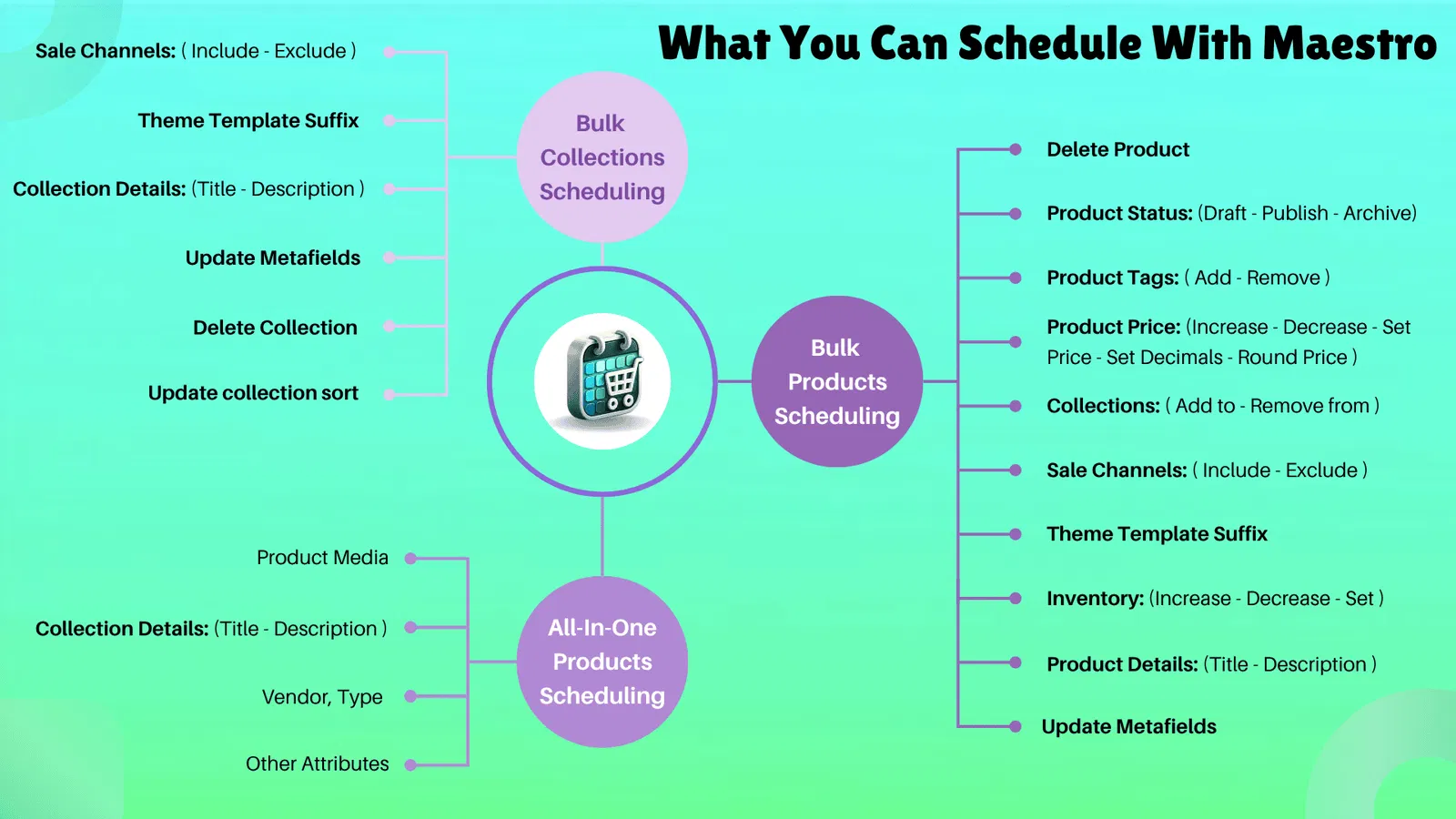
For instance, if you are running frequent sales or seasonal promotions, you might find yourself manually updating product tags or collection headers at midnight. Using tools like the Maestro Theme Scheduler or the Maestro Products Scheduler, you can automate these changes in advance.
Automation allows your team to focus on proactive growth rather than reactive maintenance. Whether it is scheduling theme changes or letting customers check their own gift card balances, every bit of automation builds a more resilient and scalable business.
Best Practices for a Seamless Experience
To get the most out of your gift card self-service, consider these additional tips:
- Update Your FAQ Page: Include a direct link to the gift card checker in your FAQ. When a customer searches for "how to check my balance," they should find a link that takes them directly to the tool.
- Use Canned Responses: For the few customers who still reach out via email, create a template that includes the link to your self-service page. This educates them for next time.
- Promote It in Newsletters: If you have many outstanding gift card balances, send a dedicated email reminding customers to check their balance and shop. It is a great way to re-engage dormant customers.
- Combine with Other UX Wins: Small details matter. Ensure your favicon is updated and your social links open in a new tab to keep the shopping experience smooth and uninterrupted.
Conclusion
Reducing your support ticket volume does not require a massive overhaul of your operations. Often, the most significant impact comes from solving the smallest, most repetitive problems. By implementing the Gift Card Checker By Maestro, you are taking a proactive step toward a more efficient, customer-centric store.
As a Shopify expert, I can tell you that the most successful stores are the ones that prioritize the customer's time as much as their own. Slashing support tickets by 60 percent is not just a dream. It is a five-minute setup away.
If you are looking to further optimize your store or need help with a comprehensive shopify store setup, the team at XCO Agency is here to help. We specialize in turning complex e-commerce challenges into simple, automated solutions.
Ready to reclaim your time? Install the Gift Card Checker and start focusing on the work that actually moves the needle for your business. For more tips on streamlining your Shopify operations, feel free to explore our full library of Shopify guides.