
As a Shopify expert, I often work with merchants who are seeking ways to scale their operations without scaling their support costs. One of the most persistent drains on a customer service team is the manual verification of gift card balances. While gift cards are a powerful tool for driving revenue and customer acquisition, they frequently generate a high volume of repetitive inquiries. Customers often lose their original notification emails or simply want a quick confirmation of their remaining funds before they start shopping.
When your team is forced to spend hours every week looking up codes in the Shopify admin, they are being pulled away from high-value tasks like closing sales or resolving complex shipping issues. Implementing a self-service solution is not just a convenience for your customers: it is a vital strategy for efficient store management. By providing a dedicated widget where shoppers can check their own balances, you empower your audience while clearing your inbox.
In this guide, I will show you how to set up a professional gift card checker using the Gift Card Checker By Maestro app. This process takes less than five minutes and requires zero coding knowledge, making it an essential part of any modern shopify store setup.
The Strategic Importance of Self-Service Tools
Before we dive into the technical steps, it is important to understand the "why" behind this implementation. Merchants who prioritize self-service tools often see a significant improvement in both operational efficiency and customer sentiment.
- Reduction in Support Volume: By automating the most common gift card question, you can reduce related support tickets by up to 80 percent.
- Faster Path to Purchase: When a customer knows exactly how much they have to spend, they are more likely to complete a transaction immediately.
- Improved Trust and Transparency: Providing instant access to balance data shows that your brand is professional and customer-centric.
- Enhanced Mobile Experience: Mobile shoppers value speed and autonomy. A quick widget is far more effective than forcing a mobile user to find an old email or wait for a live chat response.

Step 1: Install the Gift Card Checker By Maestro
The first step in streamlining your ecommerce maintenance services is adding the right technology to your stack. The Gift Card Checker By Maestro is specifically designed to integrate seamlessly with the Shopify native gift card system.
- Navigate to the Shopify App Store.
- Search for "Gift Card Checker By Maestro" or visit the app listing directly.
- Click the "Install" button to add the app to your store.
- Approve the necessary permissions to allow the app to securely access your gift card data.
Once the installation is complete, you will be redirected to the app dashboard where you can begin the configuration process.
Step 2: Configure Your Balance Check Widget
The beauty of the Maestro app lies in its simplicity. You do not need to hire a developer or edit any Liquid files. The setup is designed for quick deployment through the Shopify Theme Editor.
- Open your Shopify Admin and go to Online Store, then select Themes.
- Click the "Customize" button on your current active theme.
- Navigate to the "App Embeds" section on the left-hand sidebar.
- Toggle the "Gift Card Checker" embed to the "On" position.
- Save your changes to ensure the widget is active.
By using the App Embed system, you ensure that the app does not slow down your site. The logic is handled efficiently, keeping your page load speeds optimized for both SEO and user experience.

Step 3: Customize the Design for Brand Consistency
A common mistake merchants make is using third-party tools that look out of place on their storefront. To maintain brand authority, your gift card checker must look like a native part of your website.
- Adjust Color Palettes: Select button and background colors that match your brand identity.
- Refine Typography: Ensure the fonts used in the widget align with your theme settings.
- Modify Button Text: Use action-oriented language like "Check My Balance" or "Verify Funds" to guide the user.
- Set Display Rules: Choose whether the widget appears as a floating button, a dedicated page element, or a link in your footer.
The Gift Card Checker By Maestro offers a "Custom Styles" feature for Advanced and Plus users, allowing for deep CSS customization if your brand requires specific aesthetic nuances.
Step 4: Add the Checker to Your Navigation
Once the widget is styled and active, you must ensure your customers can actually find it. Visibility is the key to reducing support tickets. If the checker is hidden, customers will continue to email your support team.
- Go to Online Store and select Navigation in your Shopify Admin.
- Select your Footer Menu or Main Menu.
- Add a new menu item titled "Check Gift Card Balance."
- Link this menu item to the specific page where you have embedded the checker or use a URL parameter that triggers the widget.
- Ensure this link is also present on your "Contact Us" and "FAQ" pages.
When a customer visits your support page seeking help, they should immediately see the self-service option as the primary solution. This proactive step prevents the ticket from being created in the first place.
Monitoring Performance and ROI
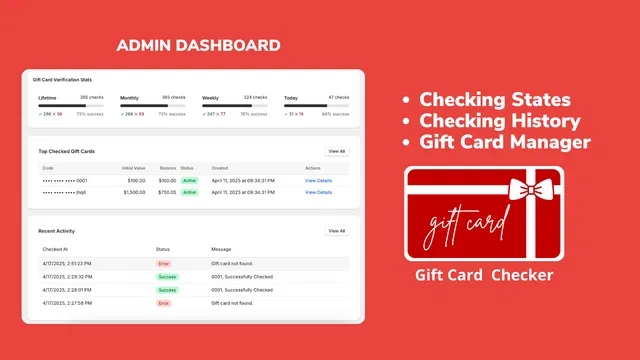
After your checker has been live for a few weeks, it is time to evaluate its impact. The Maestro dashboard provides analytics that help you understand how your customers are interacting with the tool.
- Monthly Check Counts: Track how many times customers have used the self-service tool. Every successful check represents a potential support ticket saved.
- Recent Activity Logs: See which card segments are being checked most frequently.
- Support Ticket Correlation: Compare your current support volume for gift card inquiries against the period before the app was installed. Most merchants see a clear downward trend in "balance request" tickets within the first thirty days.
If you find that usage is low but support tickets remain high, you may need to adjust the placement of the checker. Consider adding a call-to-action in your post-purchase emails specifically mentioning the balance checker.
Fostering Loyalty Through Better Experiences
A gift card checker is more than just a support tool: it is a loyalty tool. When a customer checks their balance, they are expressing an intent to shop. By making that experience frictionless, you are reinforcing their positive perception of your brand.
Many merchants use this moment to encourage repeat purchases. If a customer sees they have a remaining balance of twenty dollars, they are much more likely to browse your collections to find something that fits that budget. Without the checker, that twenty dollars might sit forgotten on a digital card, and you lose the opportunity for a return visit.
Integrating this app is a prime example of smart shopify integrations that focus on the customer lifecycle. It bridges the gap between receiving a gift and making a final purchase.

Conclusion
Creating a self-service gift card checker is a vital step for any merchant looking to optimize their Shopify store. It solves a specific, recurring problem for customers while significantly reducing the administrative burden on your staff. By following the simple steps outlined above, you can move from a manual, ticket-heavy process to an automated, user-friendly system in just five minutes.
The combination of one-click setup, deep customization, and clear analytics makes the Gift Card Checker By Maestro an essential tool for scaling e-commerce brands. Whether you are just starting your journey with a new shopify store setup or you are looking for professional ecommerce maintenance services to streamline an established enterprise, automation is the path forward.
Do not let your support team get buried in repetitive tasks. Give your customers the autonomy they crave and focus your energy on growing your business. If you need assistance with advanced store optimizations or custom app integrations, our team is here to help you build a more efficient and profitable online presence.