
As a Shopify expert, I often work with merchants who are scaling quickly but find themselves overwhelmed by the sheer volume of customer support inquiries. One of the most common, yet avoidable, requests that clogs up support queues is the simple question: "How much is left on my gift card?"
When you are managing a growing brand, your focus should be on high-level growth strategies rather than manual administrative tasks. Providing a self-service option for gift card balance checks is a vital step in optimizing your shopify store setup. Not only does it free up your team to handle more complex issues, but it also empowers your customers, leading to a more frictionless shopping experience and increased loyalty.
In this guide, I will show you how to implement a professional, branded gift card balance checker in under five minutes using the Gift Card Checker by Maestro.
Why Self-Service Gift Card Management Matters
Before we dive into the technical steps, it is important to understand why this feature is a "must-have" for any serious ecommerce maintenance services routine. Many store owners overlook the post-purchase experience, yet this is where brand loyalty is truly forged.
Boost Customer Satisfaction and Trust
- Immediate Gratification: Customers do not want to wait 24 hours for a support agent to reply to an email just to find out they have $15 left to spend.
- Reduced Friction: A clear path to checking a balance encourages immediate use of that gift card, often leading to a higher average order value as customers spend beyond the card's limit.
- Professionalism: Providing these tools makes your store look established and customer-centric, similar to major enterprise retailers.
Optimize Your Support Operations
- Lower Ticket Volume: By automating this one request, you can significantly reduce the number of "low-value" tickets your team handles daily.
- Cost Efficiency: Less time spent on manual checks means lower operational costs for your customer service department.
- Focus on Sales: Your support team can pivot from answering basic questions to proactively assisting customers with product recommendations or shipping inquiries.
Step 1: Install the Gift Card Checker App
The first step in upgrading your shopify store setup is to integrate the right tools. While Shopify provides basic gift card functionality, it does not offer an out-of-the-box self-service portal for customers to check their balances without logging into a full account or contacting support.
Navigate to the Shopify App Store and search for Gift Card Checker by Maestro. This app was specifically designed to bridge this gap with a focus on ease of use and design flexibility.
- Select the App: Click on the app listing and select "Add App."
- Approve Installation: Follow the prompts to authorize the app within your Shopify admin.
- One-Click Activation: The app is designed for immediate utility, meaning you do not need to deal with complex coding or liquid file edits right away.
Step 2: Configure Your Dashboard Settings
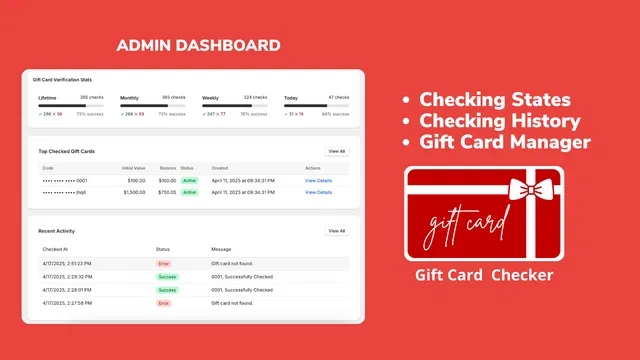
Once the app is installed, you will be redirected to the Gift Card Checker dashboard. As an expert in ecommerce maintenance services, I appreciate tools that provide a clear overview of activity. The Maestro dashboard shows you exactly how many customers are checking their balances and which gift cards are most active.
- Navigate to Settings: Locate the settings tab to begin the configuration.
- Enable the Widget: Ensure the primary toggle for the balance check functionality is set to "Active."
- Review Verification Stats: Use the dashboard to monitor recent activity. This data can be incredibly useful for your growth strategies, as it shows you when gift card holders are most active during the week.

Step 3: Customize the Design for Brand Consistency
One of the biggest mistakes merchants make during their initial shopify store setup is using generic widgets that look out of place. Your gift card balance checker should look like a native part of your website, not a third-party add-on.
Gift Card Checker by Maestro offers robust customization options that allow you to match your brand's aesthetic perfectly.
- Match Your Color Palette: Adjust the background colors, button colors, and text styles to align with your brand identity.
- Upload Custom Graphics: Use your own brand icons or gift card imagery to create a cohesive look.
- Adjust Typography: Choose fonts that match your store’s theme to ensure the user interface remains professional and readable.
- Branding Consistency: A seamless design builds trust, making customers more likely to complete a purchase once they see their remaining balance.
If you need assistance with the aesthetic alignment of your store, our shopify design services can help ensure every element of your site is pixel-perfect.

Step 4: Add the Balance Checker to Your Store Navigation
Once your widget is customized, you need to make it accessible to your customers. The best way to do this is by creating a dedicated page or adding a link in your footer.
- Create a New Page: Go to Online Store > Pages in your Shopify admin and create a page titled "Check Gift Card Balance."
- Embed the Widget: Follow the app’s instructions to embed the checker onto this page. This usually involves a simple copy-paste of a short snippet of code or selecting the app block in the Shopify Theme Editor.
- Update Navigation: Navigate to Online Store > Navigation. Add a link to your new "Check Balance" page in your Footer menu or within the "Account" dropdown.
- Test the Flow: Ensure you test the page on both desktop and mobile devices to verify that the layout remains clean and the functionality is intact.
Step 5: Leverage Automation for Better Customer Retention
Adding a gift card checker is not just about reducing support tickets; it is about keeping your brand top-of-mind. When a customer checks their balance, they are expressing an intent to shop. This is a prime opportunity for engagement.
Consider how this fits into your broader shopify integrations. You might want to pair this self-service tool with automated email reminders for customers who have a balance but haven't made a purchase in 60 days.
- Incentivize Use: On the balance check page, consider adding a "Shop New Arrivals" button to direct traffic back into your sales funnel.
- Promote Loyalty: Use the data from your gift card usage to identify your most loyal advocates.
- Streamline Operations: Use tools like Maestro Theme Scheduler to update the banners on your balance check page during holiday sales or special promotions.

Maintenance and Continuous Improvement
The best shopify store setup is never truly "finished." It requires ongoing attention and refinement. This is where ecommerce maintenance services become invaluable. Regularly checking your app performance and customer feedback ensures that your tools are actually helping your business grow.
- Monitor Analytics: Review the checking history in the Maestro dashboard once a month to see if there are spikes in activity.
- Gather Feedback: Use Maestro Feedback to ask customers if they found the balance check process easy to use.
- Update Regularly: Ensure all your apps are up to date and that the design still aligns with any theme updates you have performed.
If you find that managing these technical details is taking away from your ability to lead your company, you might want to explore our pricing for dedicated maintenance and development support.
Final Thoughts on Automating Your Shopify Store
Implementing a self-service gift card balance check is a simple yet powerful way to enhance your shopify store setup. By following these steps, you move away from manual, repetitive tasks and toward a more automated, scalable business model.
This proactive step reduces the burden on your support team, improves the customer experience, and ultimately fosters the kind of loyalty that drives repeat purchases. Whether you are a small boutique or a high-volume Shopify Plus merchant, the Gift Card Checker by Maestro is an essential tool for your ecommerce toolkit.
Are you ready to optimize your store and reduce your support load? You can book a meeting with our team to discuss how we can help you streamline your operations, or visit our contact page for any specific questions about our services and the Maestro app suite.
Maintaining a successful store is about the small details that create a big impact. Adding a balance checker today is a vital step toward a more efficient tomorrow.