
As a Shopify expert, I often work with merchants who are struggling to manage the sheer volume of customer support inquiries that flood their inboxes daily. One of the most common, yet easily avoidable, questions support teams face is: "How much balance is left on my gift card?"
While gift cards are a fantastic way to boost revenue and encourage repeat purchases, the traditional Shopify setup often leaves customers in the dark regarding their remaining balance. This lack of transparency leads to frustration for the shopper and a heavy administrative burden for your team. Many store owners are seeking ways to automate this process as part of their broader ecommerce maintenance services.
Implementing a self-service solution is a vital step in modernizing your store. By providing a dedicated gift card checker widget, you empower your customers to find answers themselves, significantly reducing the friction in their shopping journey.
Why a Gift Card Checker is Essential for Your Shopify Store
Before we dive into the setup, it is important to understand the specific benefits this tool brings to your business:
- Drastically reduce support tickets: When customers can check their own balances, your support team is freed up to handle more complex inquiries.
- Enhance customer trust: Transparency regarding store credit builds confidence and encourages customers to return and spend.
- Boost repeat purchases: Seeing a remaining balance often acts as a nudge for a customer to start a new shopping session to use those funds.
- Maintain brand consistency: A customizable widget ensures that the self-service tool looks like a natural part of your professional Shopify store setup.
Here are the simple steps to get your gift card checker up and running using the Gift Card Checker By Maestro.
Step 1: Install the Gift Card Checker By Maestro App
The first step in optimizing your gift card management is to integrate the right tool. I recommend using the Gift Card Checker By Maestro because of its one-click setup and seamless integration with the latest Shopify themes.
- Navigate to the Shopify App Store: Search for "Gift Card Checker By Maestro" or follow the direct link from your admin dashboard.
- Click Add App: Follow the prompts to authorize the installation on your store.
- Confirm Permissions: Ensure you grant the necessary permissions so the app can securely read gift card data to provide real-time balances to your customers.
- Open the App Dashboard: Once installed, you will be taken to a clean, intuitive dashboard where you can begin the configuration.
After completing the installation, you will notice that the app is designed to work out of the box with minimal technical configuration required. This is a hallmark of high-quality Shopify integrations that we prioritize at XCO Agency.
Step 2: Configure and Customize Your Widget Design
A common mistake I see in Shopify store setup is using tools that clash with the store's aesthetic. To maintain a professional brand image, your gift card checker must match your theme’s colors, fonts, and overall vibe.
- Select the Design Tab: Inside the app dashboard, navigate to the customization or design settings.
- Adjust Brand Colors: Update the background, text, and button colors to align with your brand palette.
- Choose Your Layout: Decide if you want a standalone page for checking balances or a floating widget that follows the user.
- Edit the Text: Customize the labels and instructions to match your brand's voice. Instead of a generic "Check Balance," you might use "See Your Store Credit."
- Enable Custom CSS: For those who want even more control, the app allows for custom CSS injections to perfect the look.

Using a tool that offers this level of customization is a proactive step toward creating a cohesive user experience. If you need help with advanced design, our Shopify design services can help you integrate these elements flawlessly.
Step 3: Strategic Placement for Maximum Visibility
Once the widget is designed, you need to ensure your customers can actually find it. Effective ecommerce maintenance services involve constant optimization of your site's navigation.
- Add to the Navigation Menu: I suggest adding a "Check Gift Card Balance" link in your footer menu. This is the first place customers look for utility links.
- Integrate into the Customer Account Page: Logged-in customers are your most loyal shoppers. Placing a balance checker directly in their account dashboard makes it incredibly convenient for them.
- Use a Floating Button: If you expect high gift card usage (especially after the holiday season), consider enabling the floating button feature to keep the checker accessible from any page.
- Link from Your FAQ: Ensure your FAQ page includes a direct link to the checker.
By placing the tool in multiple logical locations, you ensure that customers find the self-service option before they feel the need to send an email to your support team.
Step 4: Test the User Experience
Before you consider the setup complete, you must verify that everything is working as intended. A broken tool can cause more support tickets than no tool at all.
- Generate a Test Gift Card: In your Shopify admin, go to Products > Gift Cards and create a test card with a small balance.
- Use the Checker as a Customer: Navigate to your storefront and enter the test gift card code into the new checker widget.
- Verify the Balance: Ensure the balance displayed matches the amount you set in the admin.
- Check Mobile Responsiveness: Open your store on a smartphone to confirm the widget is easy to use on smaller screens. Most Shopify traffic is mobile, so this step is vital.
If you encounter any issues during this phase, Shopify will guide you through common troubleshooting steps within the app, or you can reach out for professional growth strategies and technical support.
Step 5: Monitor Activity via the Admin Dashboard
The Gift Card Checker By Maestro provides more than just a customer-facing tool: it also gives you valuable data. Once your setup is live, you should regularly check the app's dashboard to understand how it is being used.
- Review Verification Stats: See how many customers are checking their balances daily.
- Monitor Top Checked Cards: Identify if there are specific cards being checked frequently, which might indicate a customer is getting ready to make a purchase.
- Analyze Recent Activity: Keep an eye on successful versus failed checks to ensure customers aren't struggling with entering their codes.
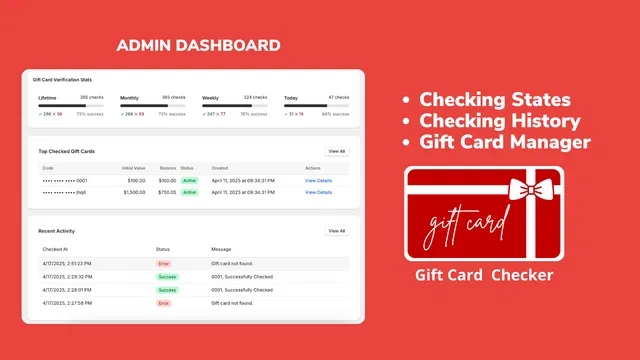
Monitoring these metrics allows you to see the direct impact the app has on your store's efficiency. When you see the number of checks increasing while your support tickets decrease, you know your ecommerce maintenance services are paying off.
Empowering Your Customers for Long-Term Success
Setting up a gift card checker is a small change that yields significant results. It transforms a manual, time-consuming process into a seamless, automated experience. As you continue to optimize your Shopify store setup, remember that every friction point you remove for the customer is an opportunity for increased loyalty and sales.
At XCO Agency, we specialize in these types of optimizations. Whether you are looking for help with Shopify integrations or a complete store overhaul, our team of experts is here to assist. We believe that a well-maintained store is the foundation of any successful e-commerce brand.
If you are ready to take your store to the next level and stop wasting hours on repetitive support tasks, installing a self-service gift card checker is the perfect place to start. It is a simple, effective, and professional way to show your customers that you value their time and their business.
If you have questions about which apps are right for your specific business model, or if you need help with a more complex migration to Shopify, don't hesitate to reach out. You can book a meeting with our team today to discuss how we can help you scale your operations and improve your bottom line through smart automation and expert design.